When I’m playing a Roblox event and I need two accounts, what I normally do is use one account on my computer and then one account on my phone. This is not really necessary. You can open multiple Roblox games at the same time on one computer and use multiple accounts.
If you’ve got an alt and a main account, you don’t need to use your phone or tablet anymore. You can do it all on one PC.
This is a slightly different method to the other tutorials. Most of them use Roblox Account Manager and honestly I think this is why I never really tried it before, because Roblox Account Manager kind of sucks. It’s a bit annoying to set up and there is an easier method.
What You Need: Bloxstrap
If you had problems with the Account Manager setup, you’re going to find this a lot easier. Bloxstrap does not just include the multi-instance launcher. It includes loads of different mods.
Install Bloxstrap
Step-by-step:
- Go to the latest release of Bloxstrap.
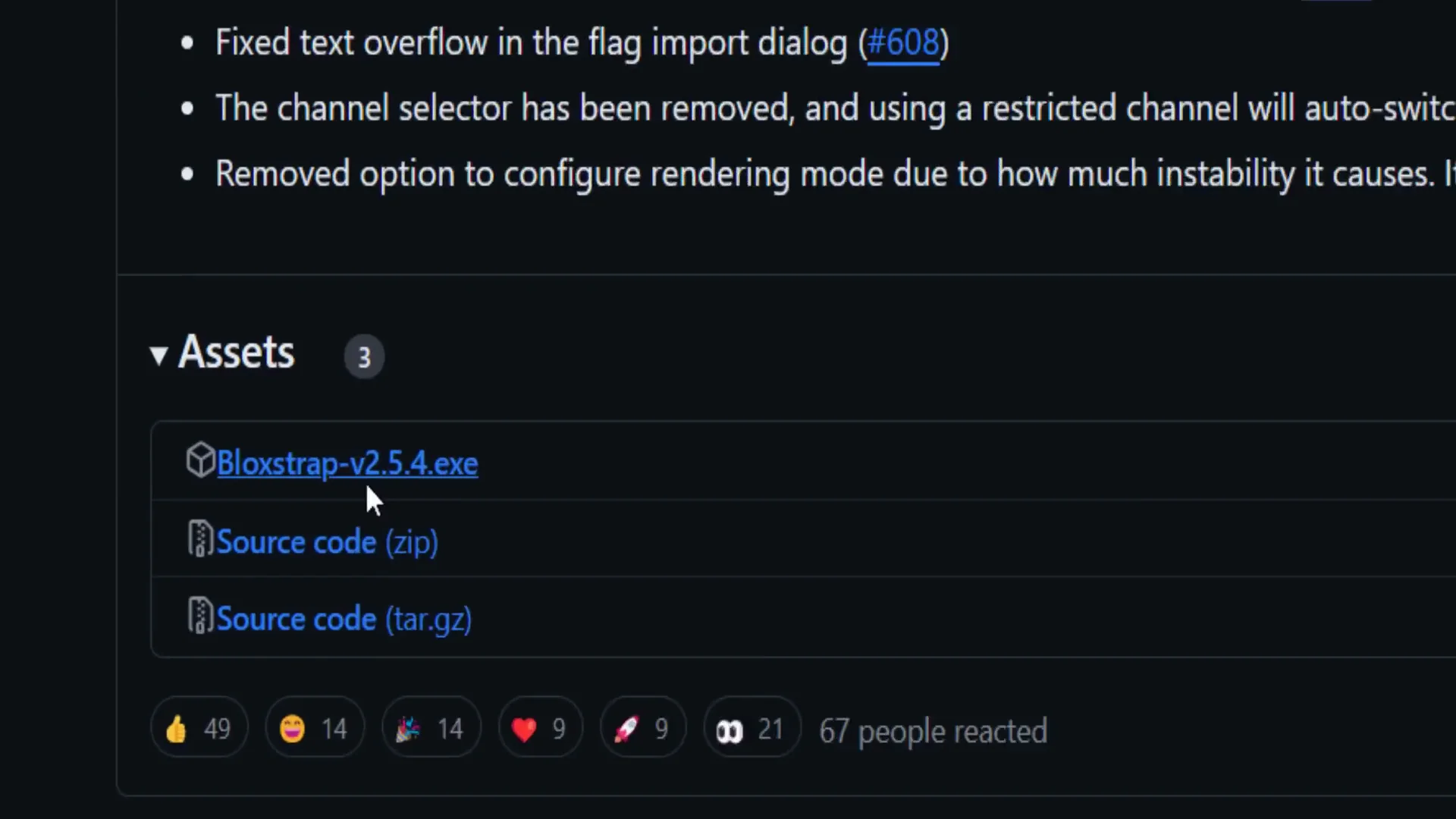
- Scroll down and find Bloxstrap version 2.5.4 exe.
- Click it and download it.
- Once it’s in your PC’s Downloads folder, double click it and install it.
Enable Roblox Multi-Instance Launching in Bloxstrap
- Open Bloxstrap.
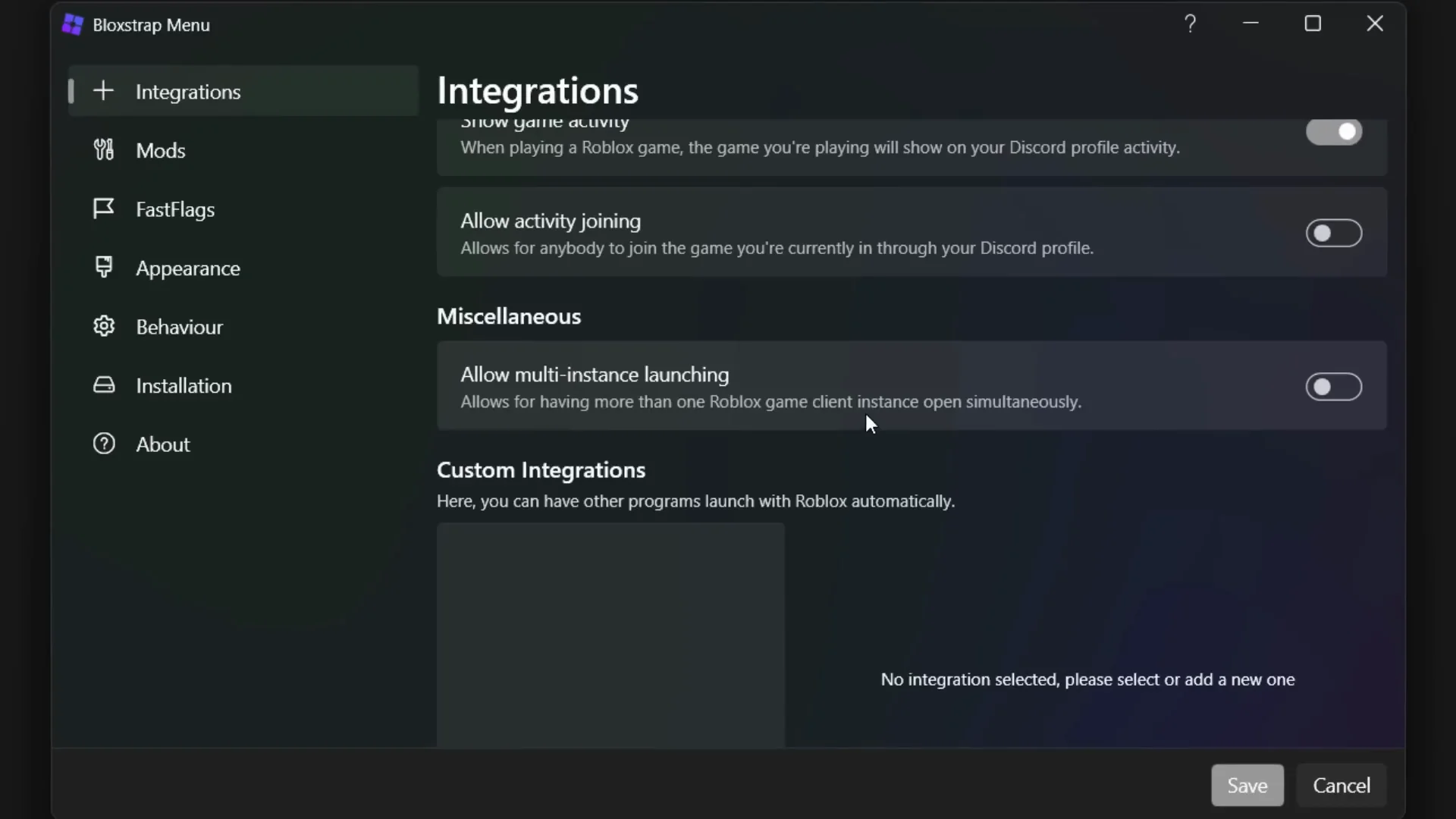
- Go to Integrations at the top.
- Scroll down and find “Allow multi-instance launching – allows for having more than one Roblox game client instance open simultaneously.”
- Enable it. Once you enable this, it might say Install. For me it says Save, so I just click Save.
- Once you save, the menu will close. Open it again if you want, but that’s it.
Open Roblox. It should be working. This is really easy to set up.
Roblox Multi-Instance Launching: How I Run Multiple Accounts
Using Multiple Browsers
I recommend using multiple browsers. You can use incognito mode and open accounts in there too. I tried this with Google Chrome and Edge at the same time. You can also try Firefox or Opera GX.
What I did:
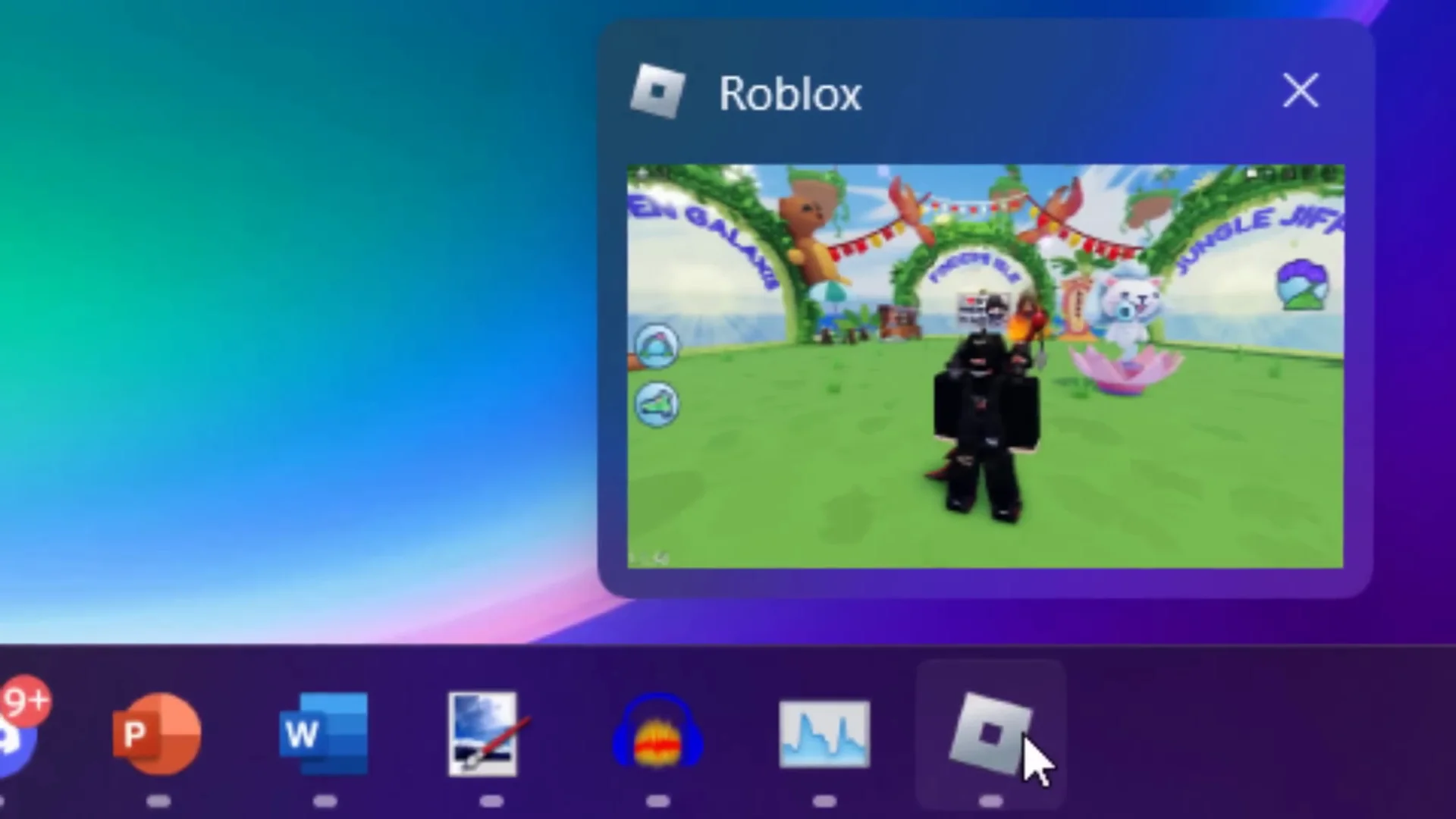
- Browser 1: Log in to my main account.
- Browser 2: Log in to my alt account.
- Join the same game in both. Leave Roblox running in the background.
You might get both audios running at the same time. Mute them if you need to.
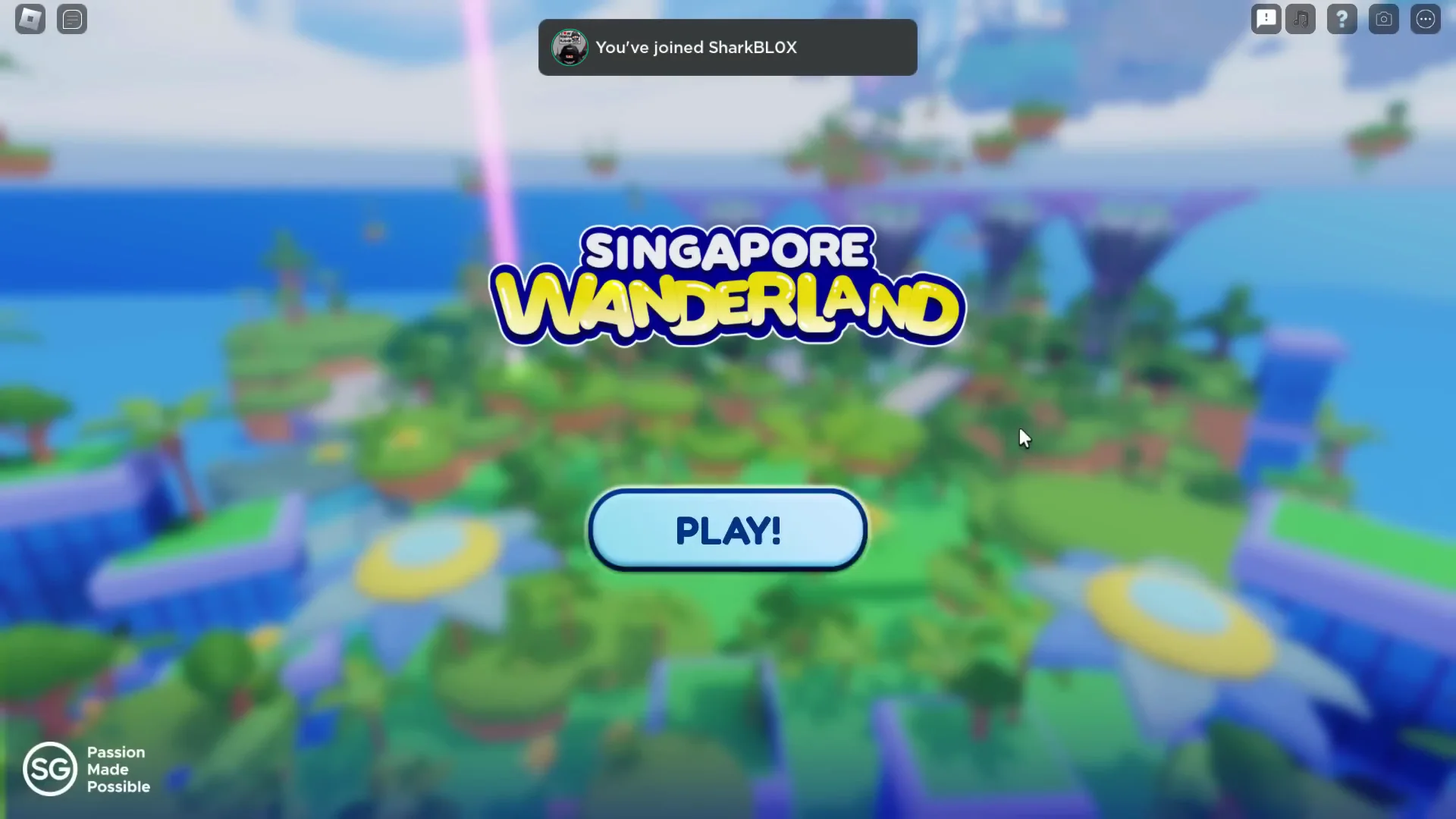
This lets you open as many Roblox game clients as you want. If you’ve got several monitors, this is really cool.
Opening a Third Instance
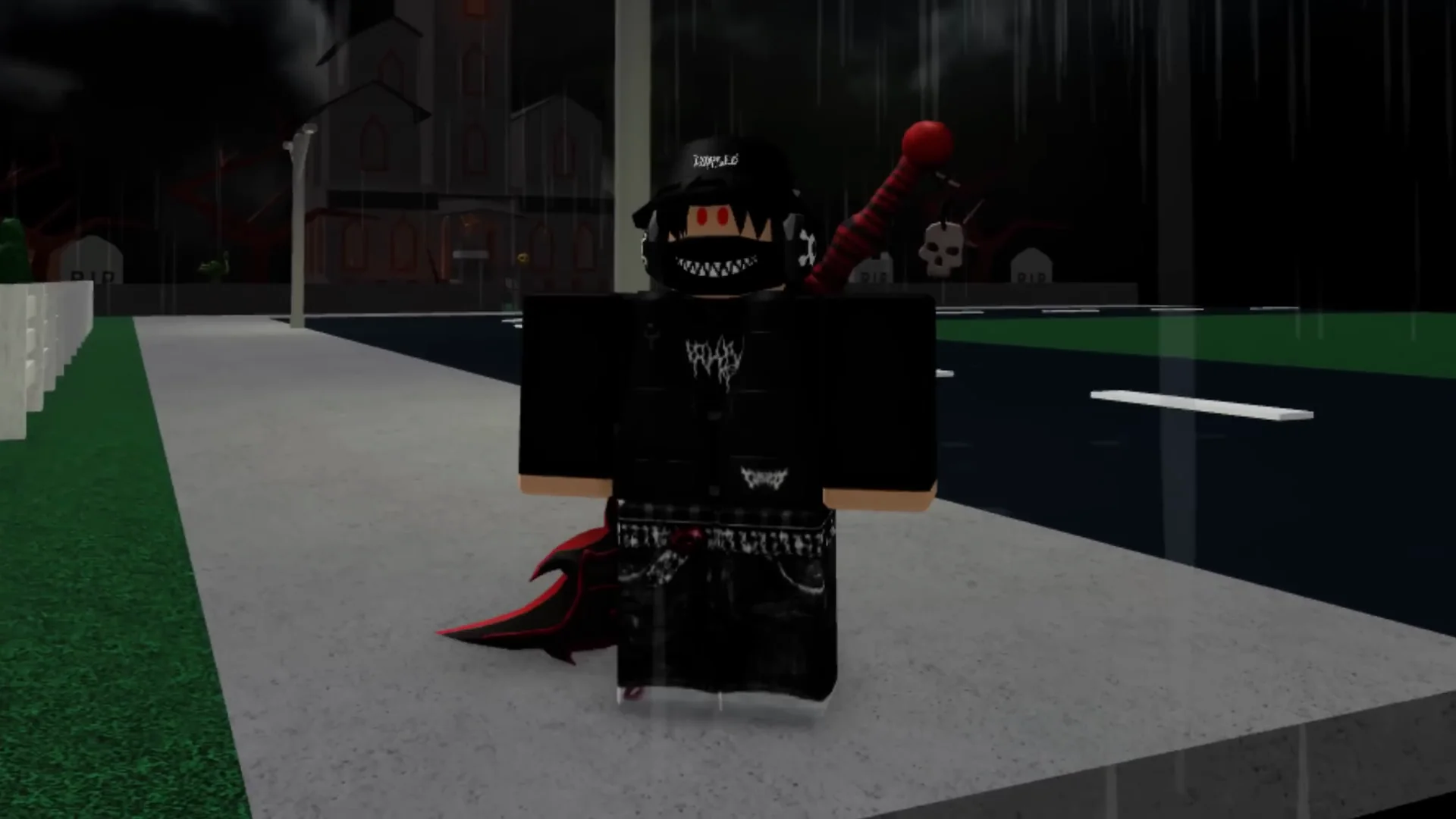
I tried opening a third one on Opera GX. I picked a basic game and launched with Bloxstrap. It works on all browsers.
I was recording on my laptop so that could crash. I can’t do this for long because my laptop kind of sucks, but if you’ve got a really powerful computer you could probably open as much as you wanted to. I can switch between the accounts and play between all three accounts.
Closing Extra Instances
If you want to close one, click the cross. You might need to click it again. Click the cross twice and it should close.
Roblox Multi-Instance Launching: Event Example
I tried this with a Roblox event to get a free item.
Event and Setup
- Event: Singapore Wonderland.
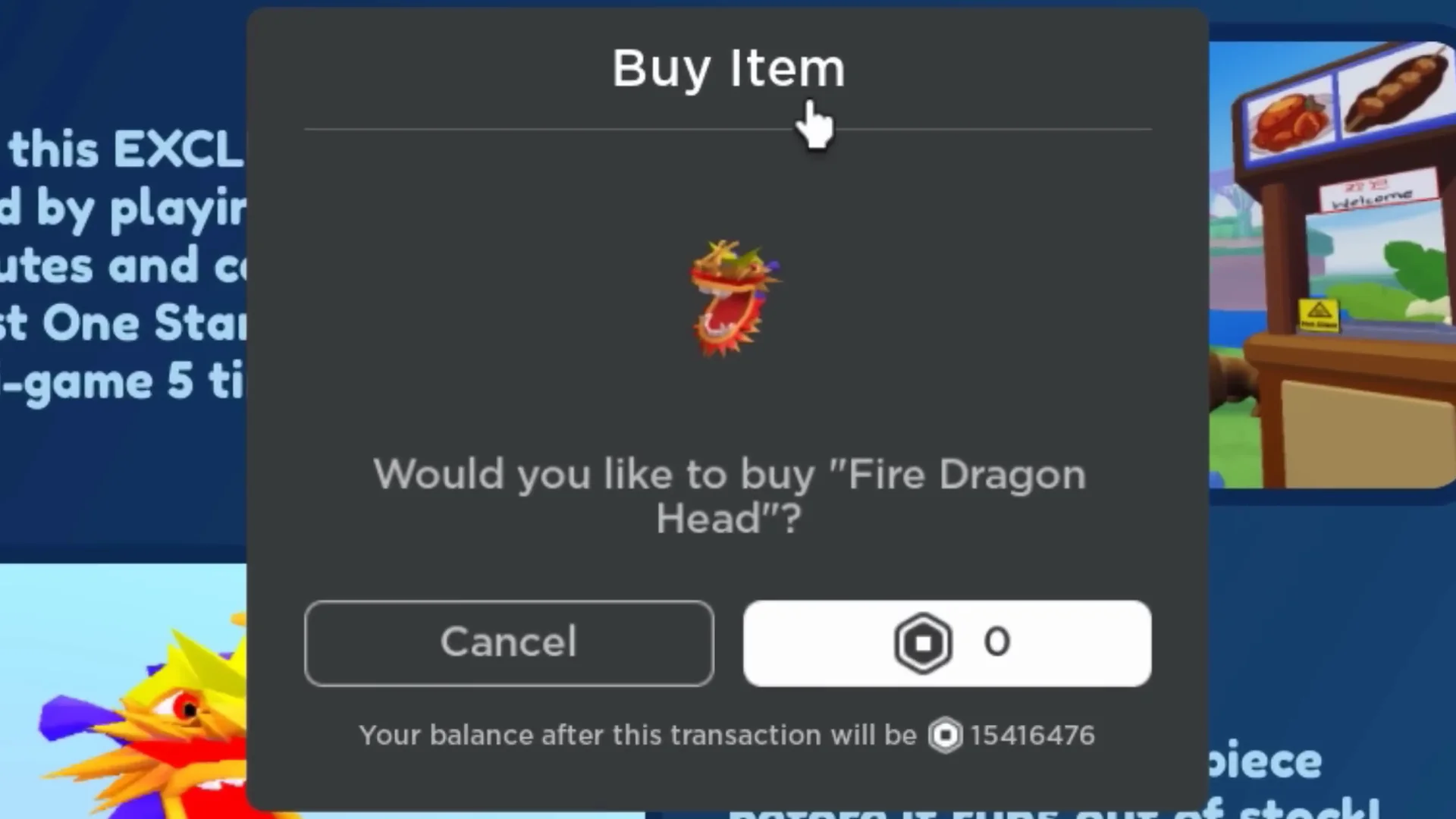
- Item: Fire Dragon head for Chinese New Year. It looks pretty awesome.
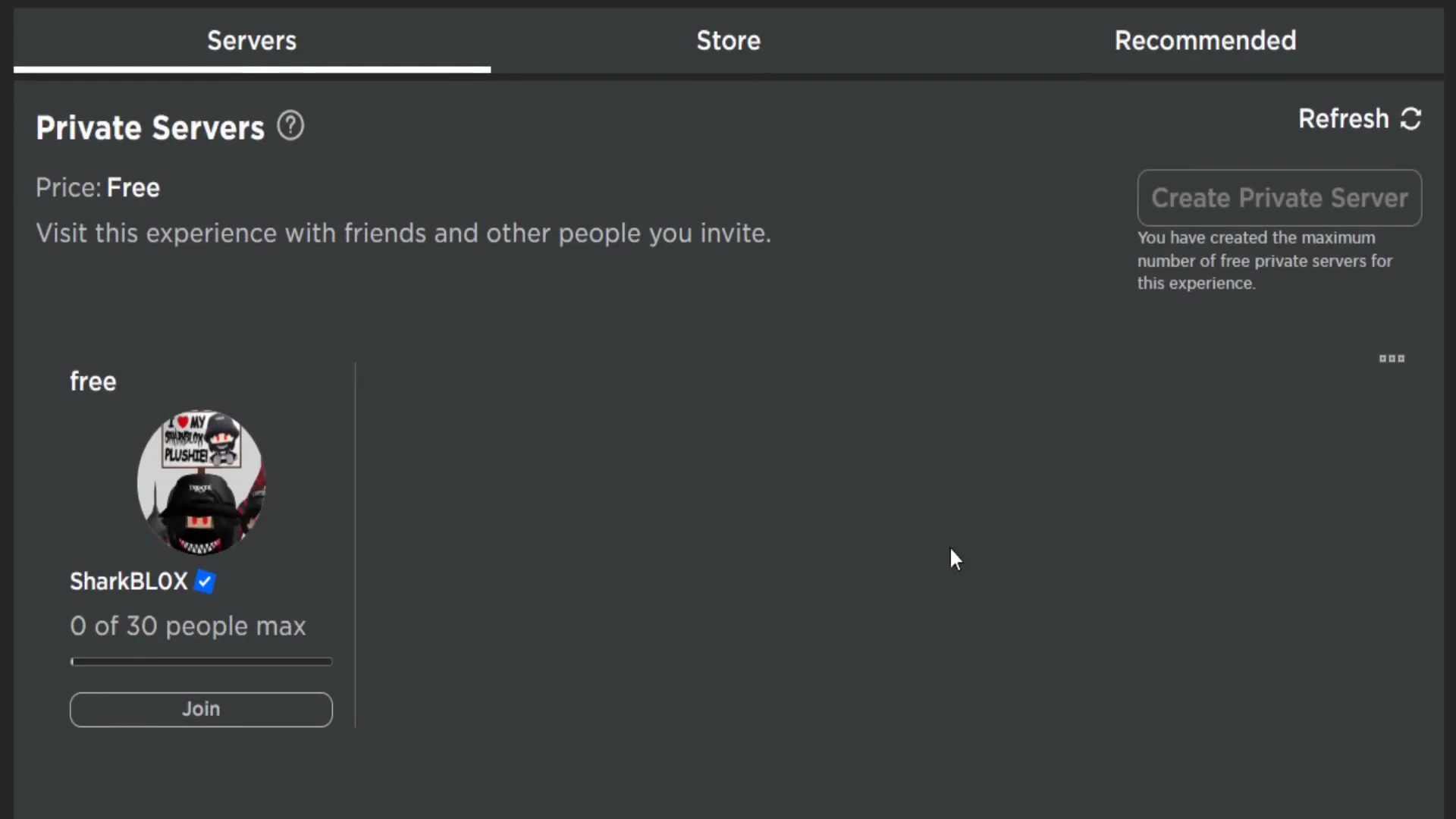
- I made a private server and joined it on my main, then joined it on my alt.
- Bloxstrap starts Roblox just like normal. Join, hit Play, and make sure you’re in your private server.
- Leave Roblox running in the background while you switch browsers.
Where to Go
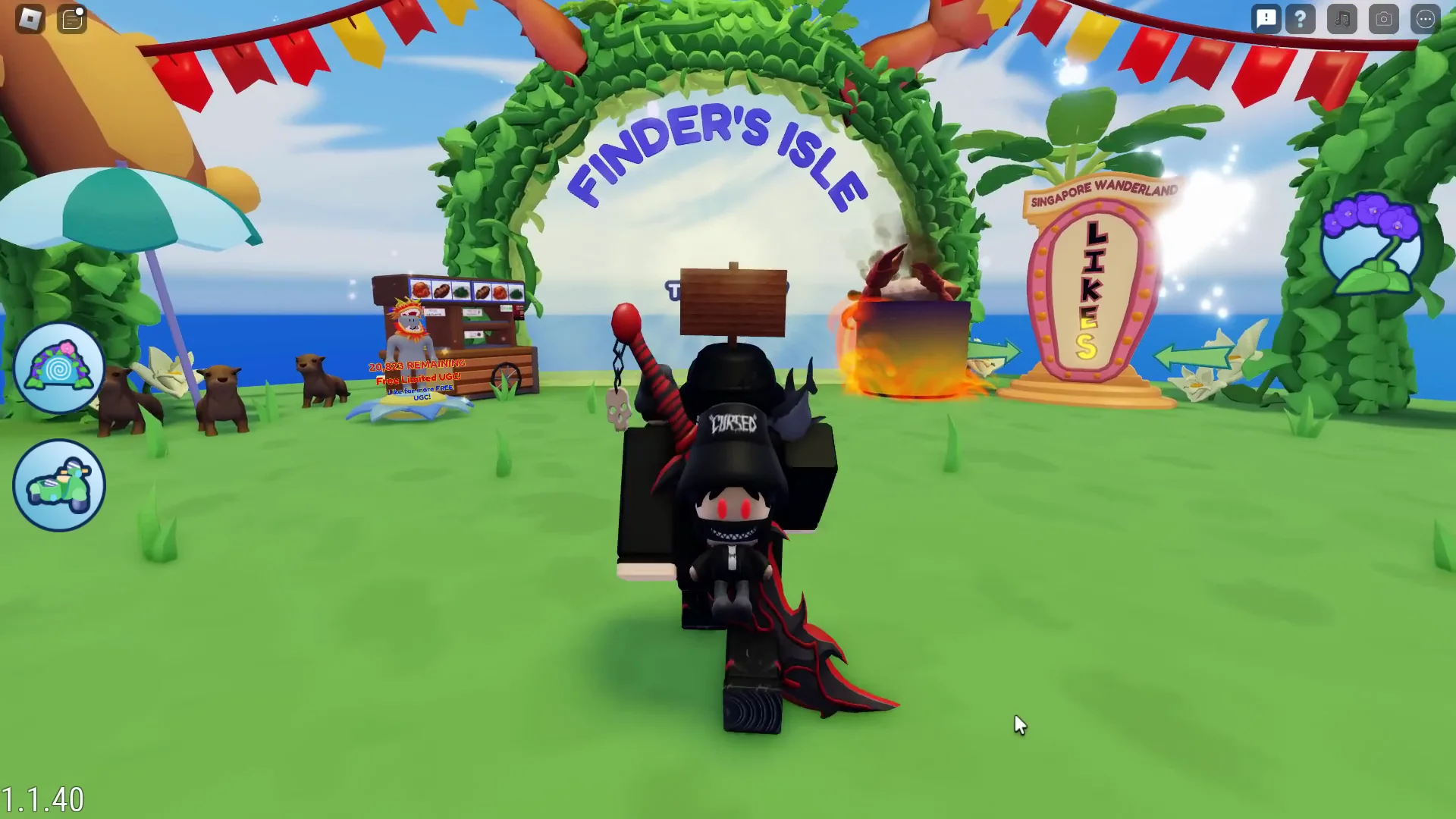
- Go into the Finder’s Aisle.
- Do this on your alt account as well, because they patched something. Before you could do the mini games by yourself. Now you need one friend in or one alt account.
Mini Game Requirements
To get the free UGC:
- Play the mini game.
- You want to play this five times.
- You have to win every single time.
- Leave your alt AFK so they just fall off the map and die, then play on your main or the account you want the item on.
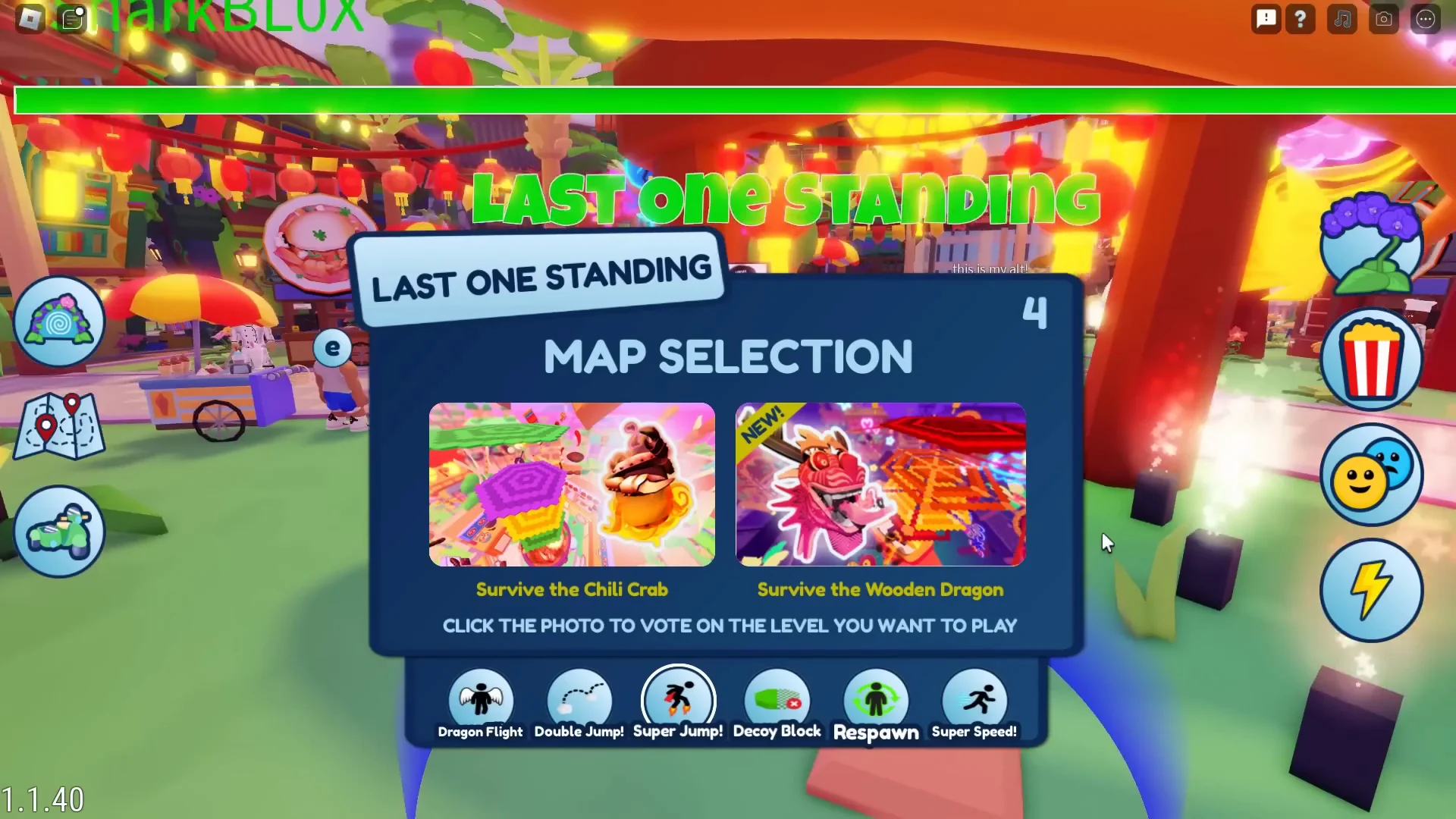
The mini game is Spleef. I won the first round, and then I repeated it five times.
AFK Time
After that, be AFK for about 30 minutes. My alt account might get the item as well.
Claiming the Reward
- Teleport back to the Garden or Merl’s Garden. This is the starting place.
- Go over to the dragon. Press E and it should automatically give it to you if you’ve been in there for 30 minutes.
- If it doesn’t, rejoin the game and you should get it.
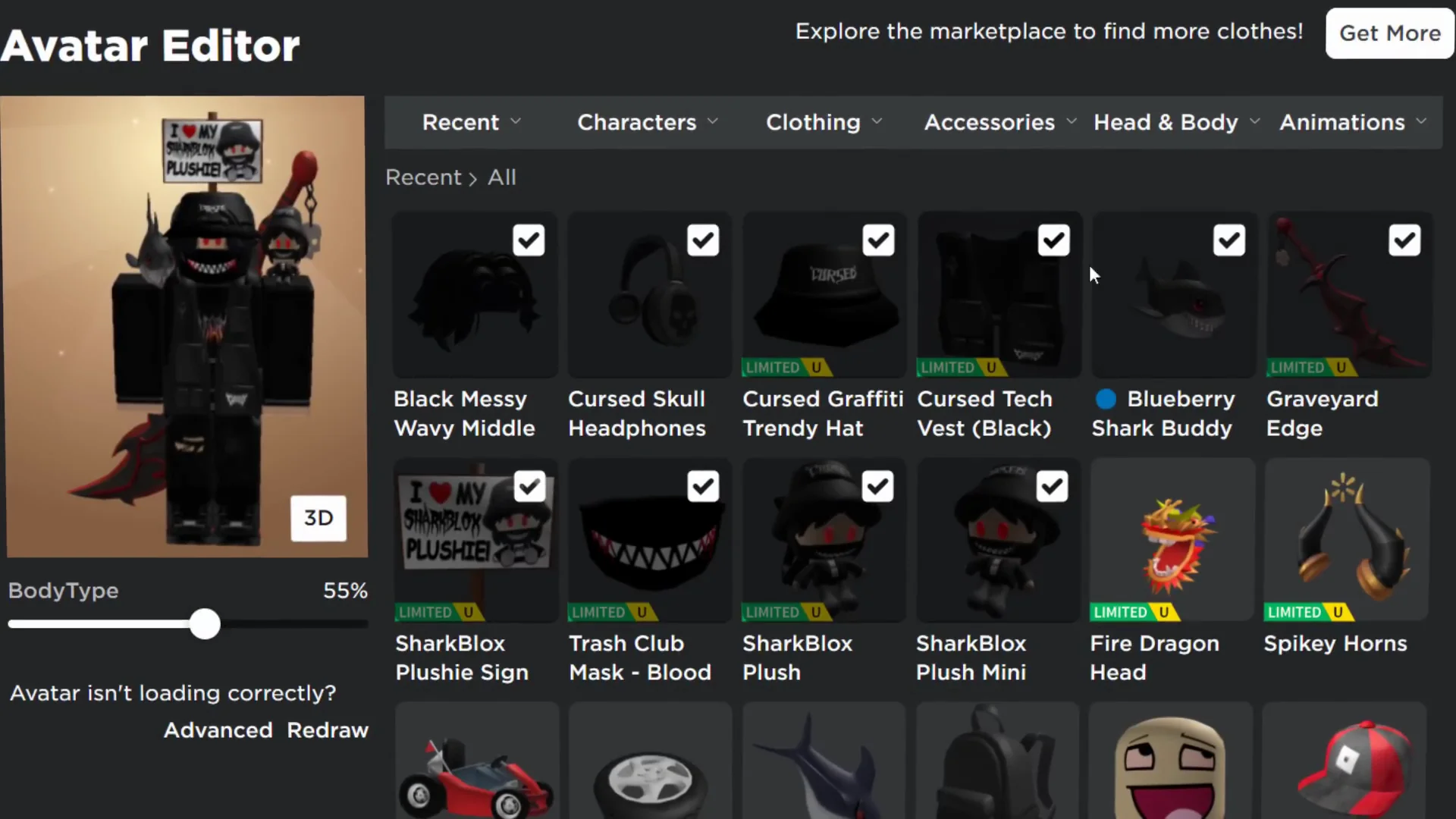
In my Avatar Editor, we got it. Something weird about this dragon head is they uploaded it as Avatar hair. The previous one was the same. These are like limited hairs, which is strange. It should be a hat, but there you go.
Final Thoughts
Multi-instance launching with Bloxstrap makes it easy to open multiple Roblox game clients and run multiple accounts on one PC. Use multiple browsers, keep each instance running, and you can complete event tasks, grind, or do whatever you want across accounts. It works across browsers, closing an instance is simple, and performance depends on your computer.