I’m showing you how to view where a server location is on Roblox. Roblox loves putting me in a server where everyone is speaking a different language, and this does not entirely solve that problem, but I have noticed that I am getting into more English speaking servers using this method.
Install BT Roblox to See Roblox Server Location
First of all, you will need to download a Roblox extension for this to work. The Roblox extension you want to download is called BT Roblox.
I must warn you, BT Roblox changes a lot of things on the Roblox platform. There are settings you can play around with to decide what you want to keep the same and what you want BT Roblox to change.
Steps to Install
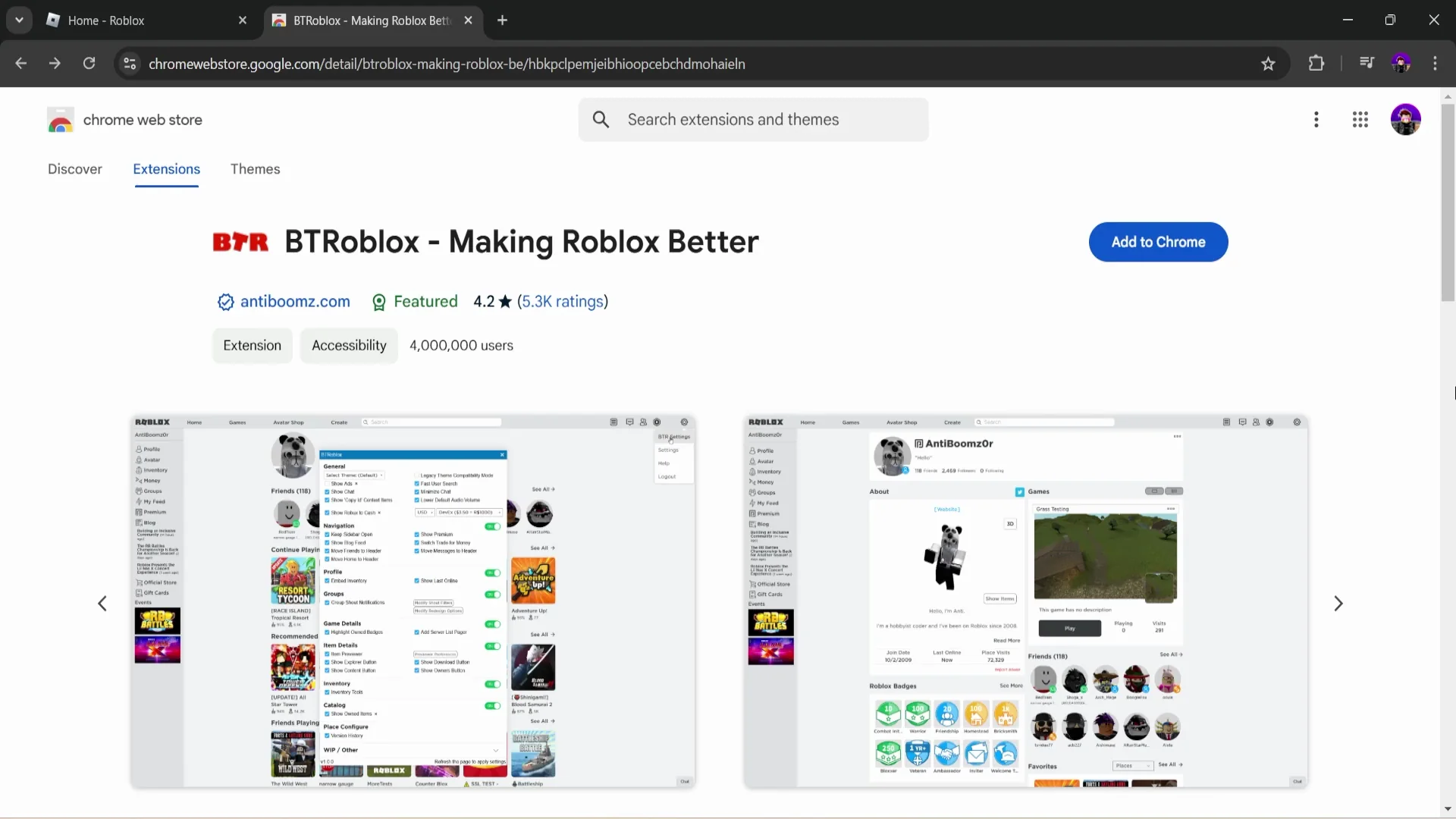
1. Open the BT Roblox page in the Chrome Web Store.
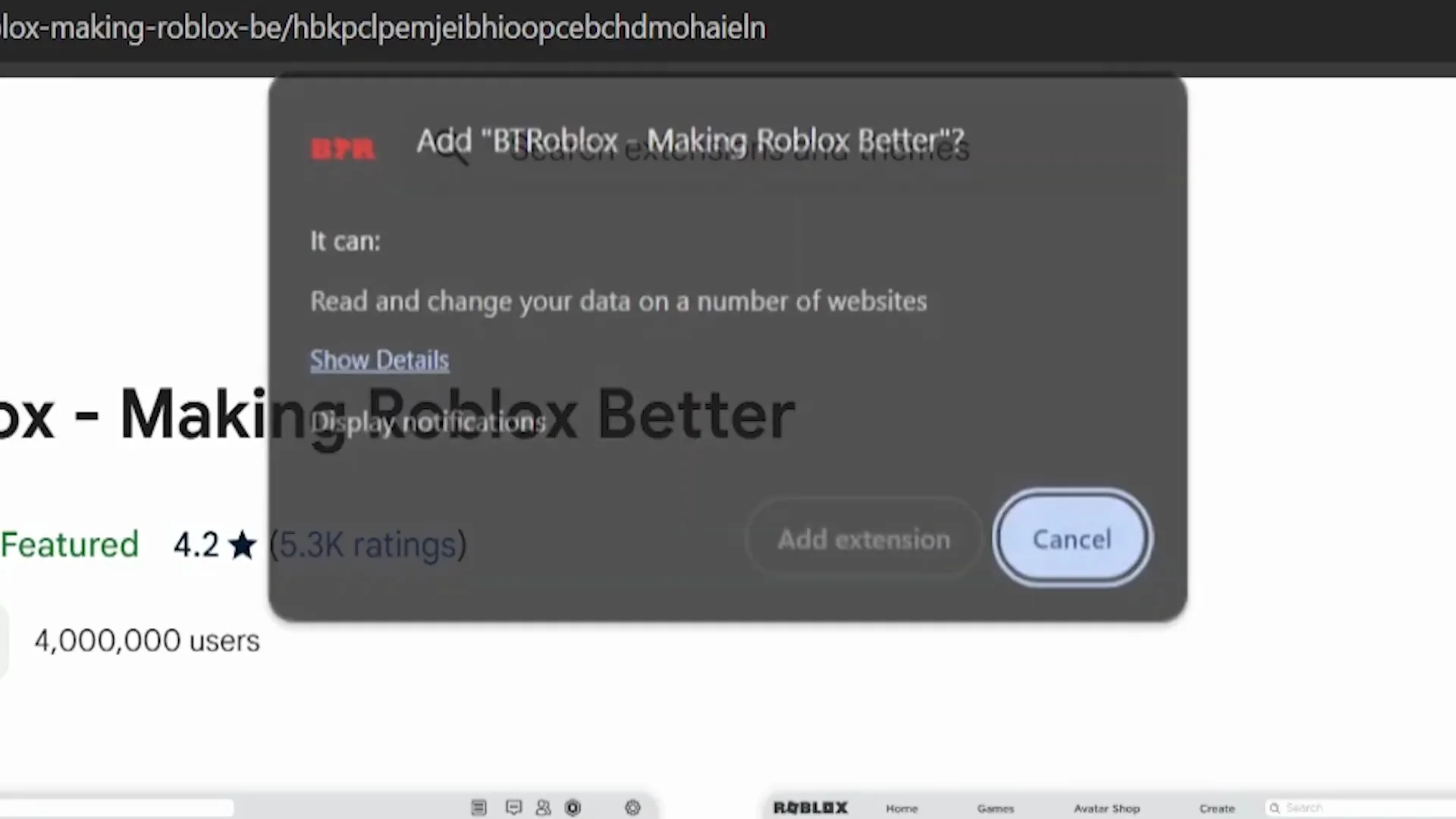
2. Click Add to Chrome, then Add extension.
3. After it installs, click the puzzle piece at the top right of your Chrome browser and confirm BT Roblox has permission to change the Roblox website.
Adjust BT Roblox Settings for Roblox Server Location
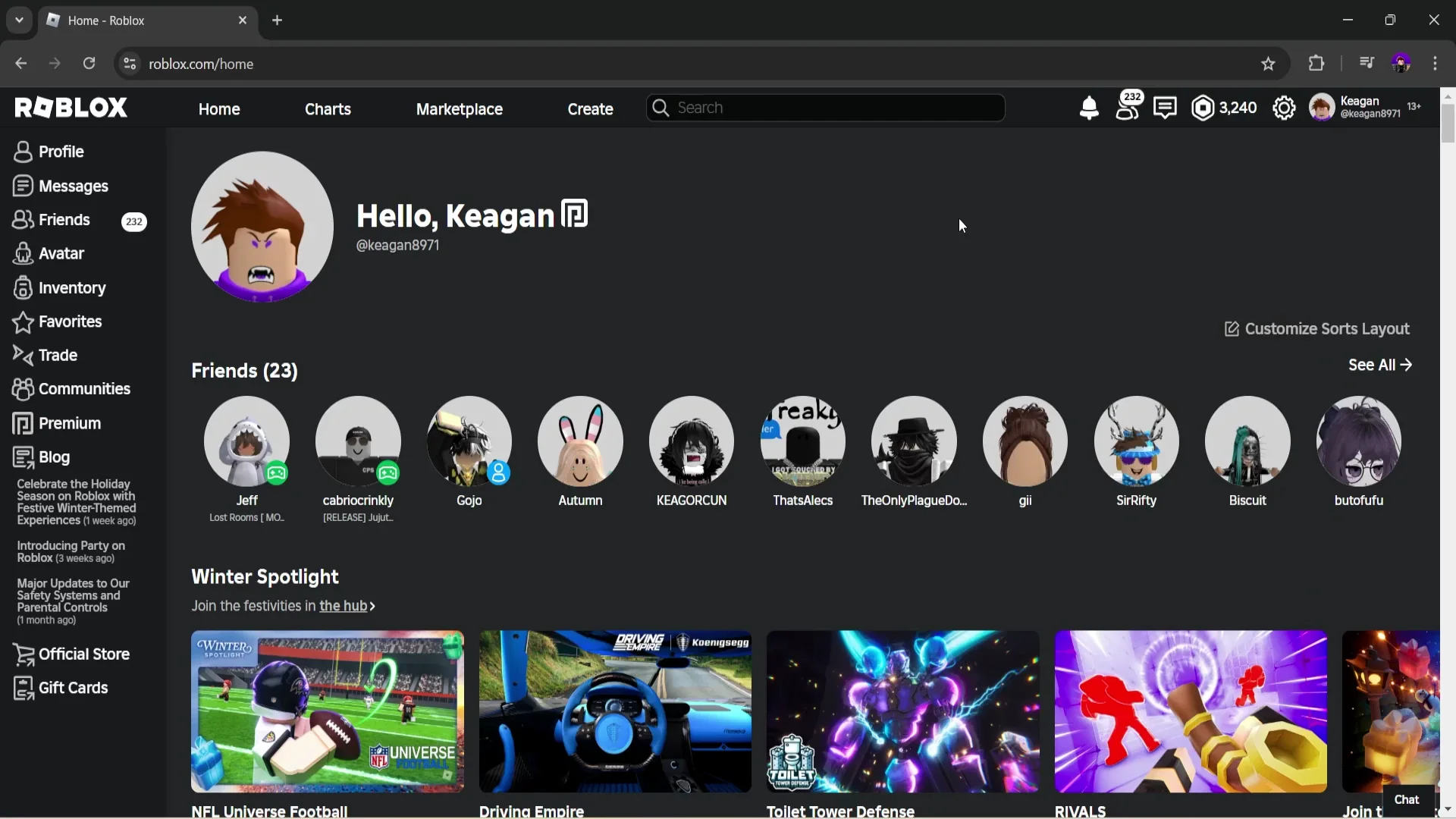
When you refresh the Roblox homepage, you will notice Roblox looks a bit different. For example:
- The sidebar is permanently open.
- The chat icon has moved to the top right by your Robux amount.
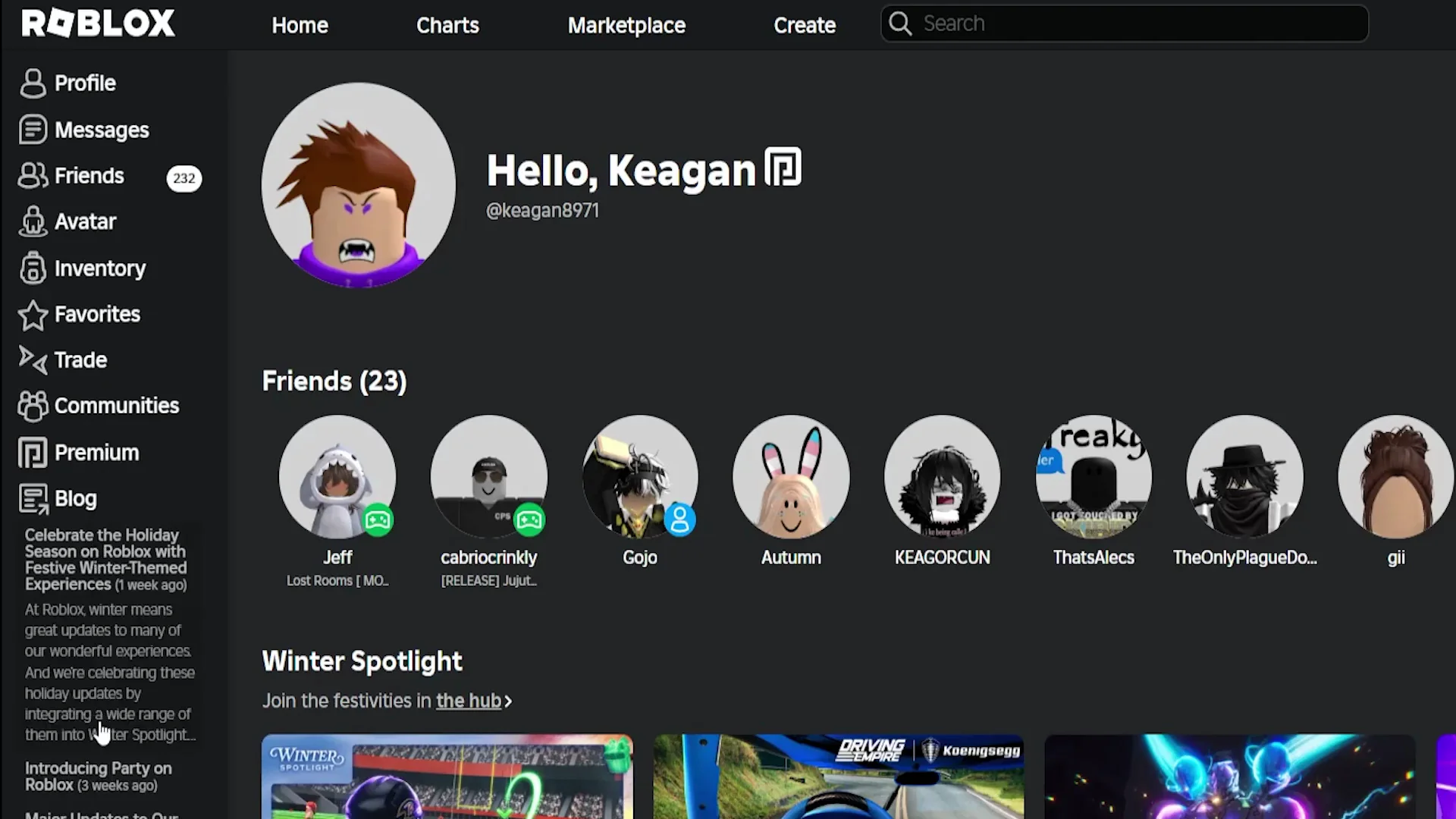
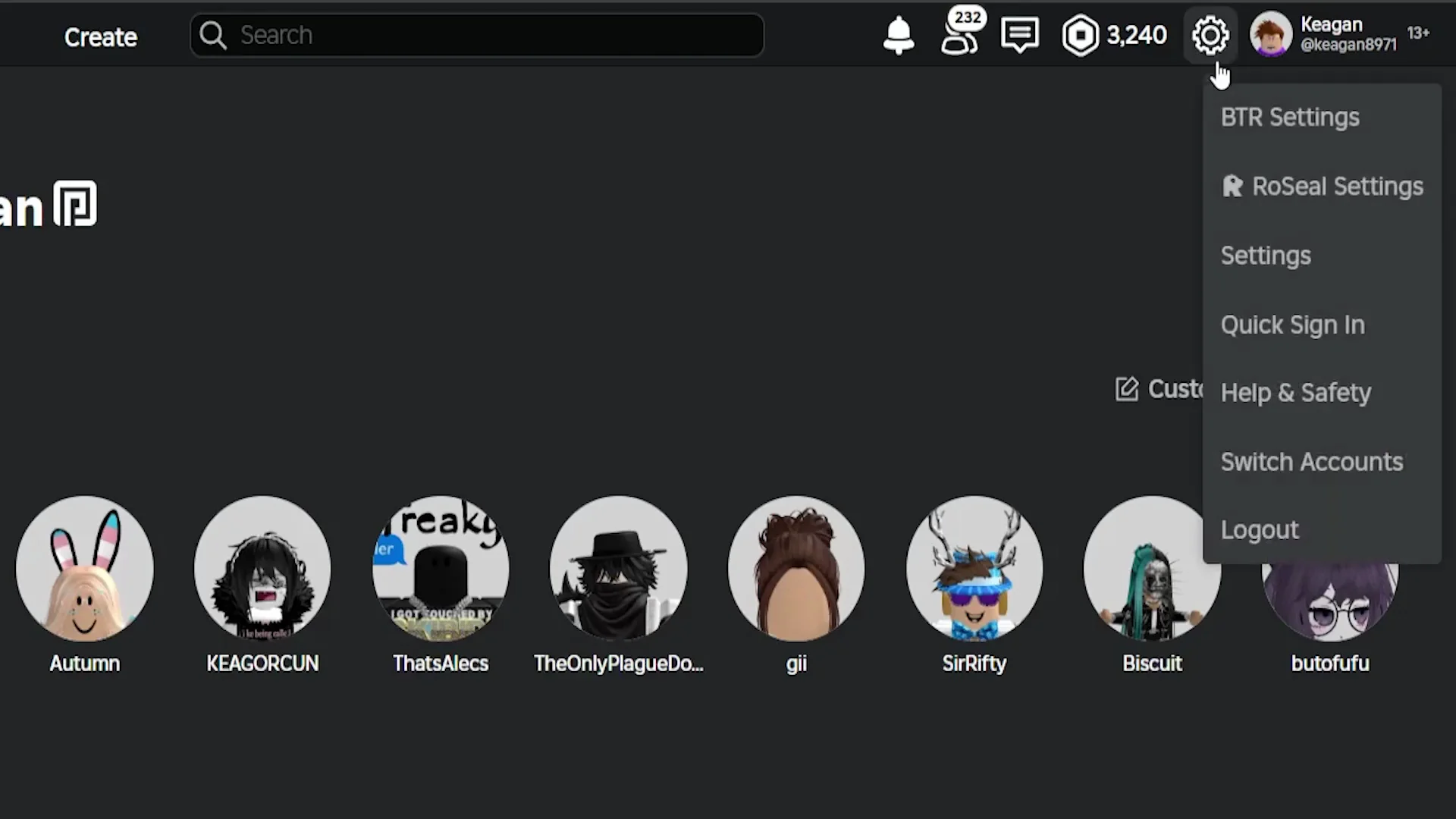
You can change this later. Go to your settings and you will see a BTR settings option is now there. These are just things I personally think are good that BT Roblox adds. I cannot stand that BT Roblox keeps the sidebar open. It just does not feel right.
Essential Settings
What you want to do is:
- Ensure the game detail section is set to On.
- You must have the server list Pages option selected. If you don’t do this, it will not display.
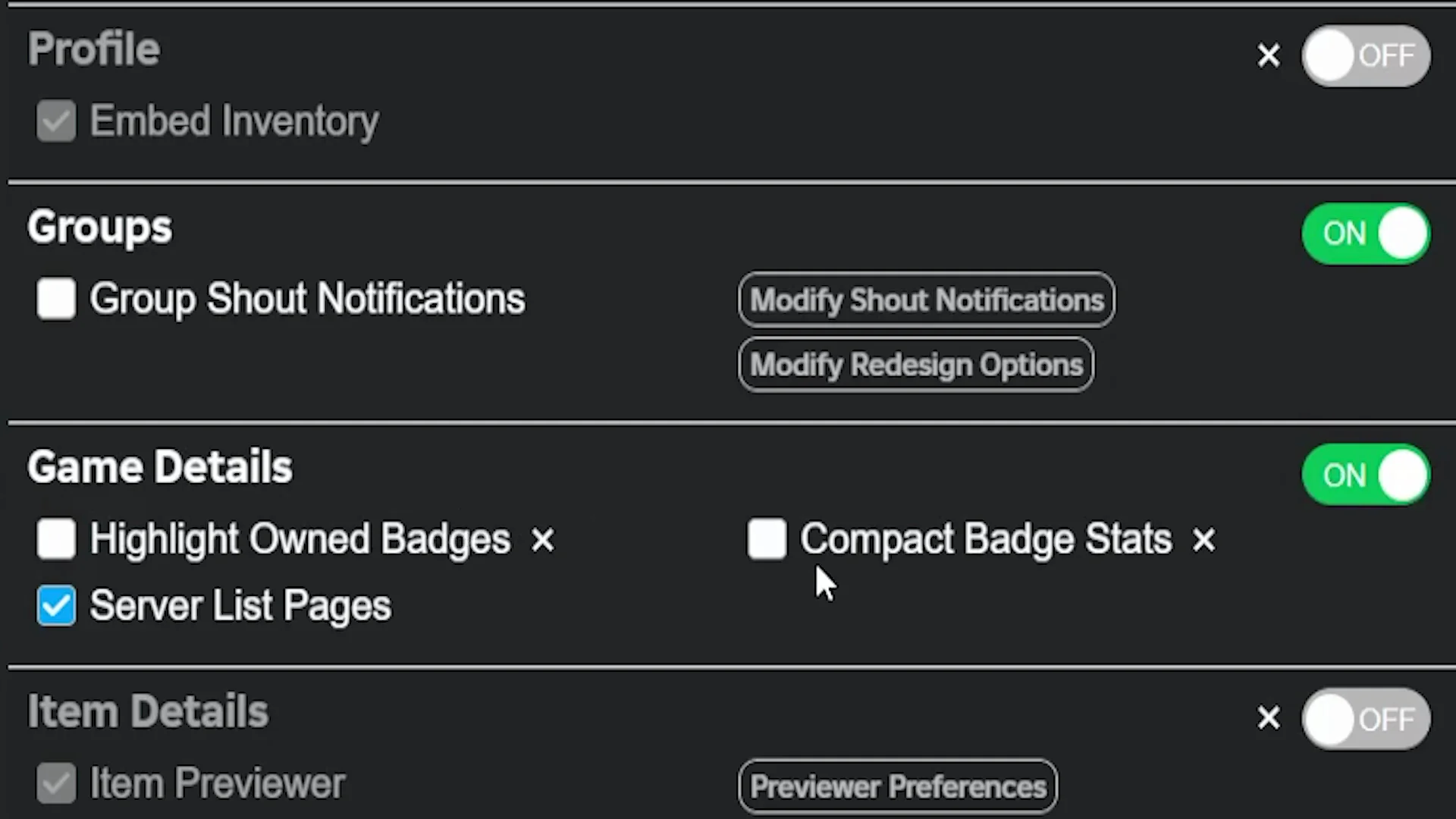
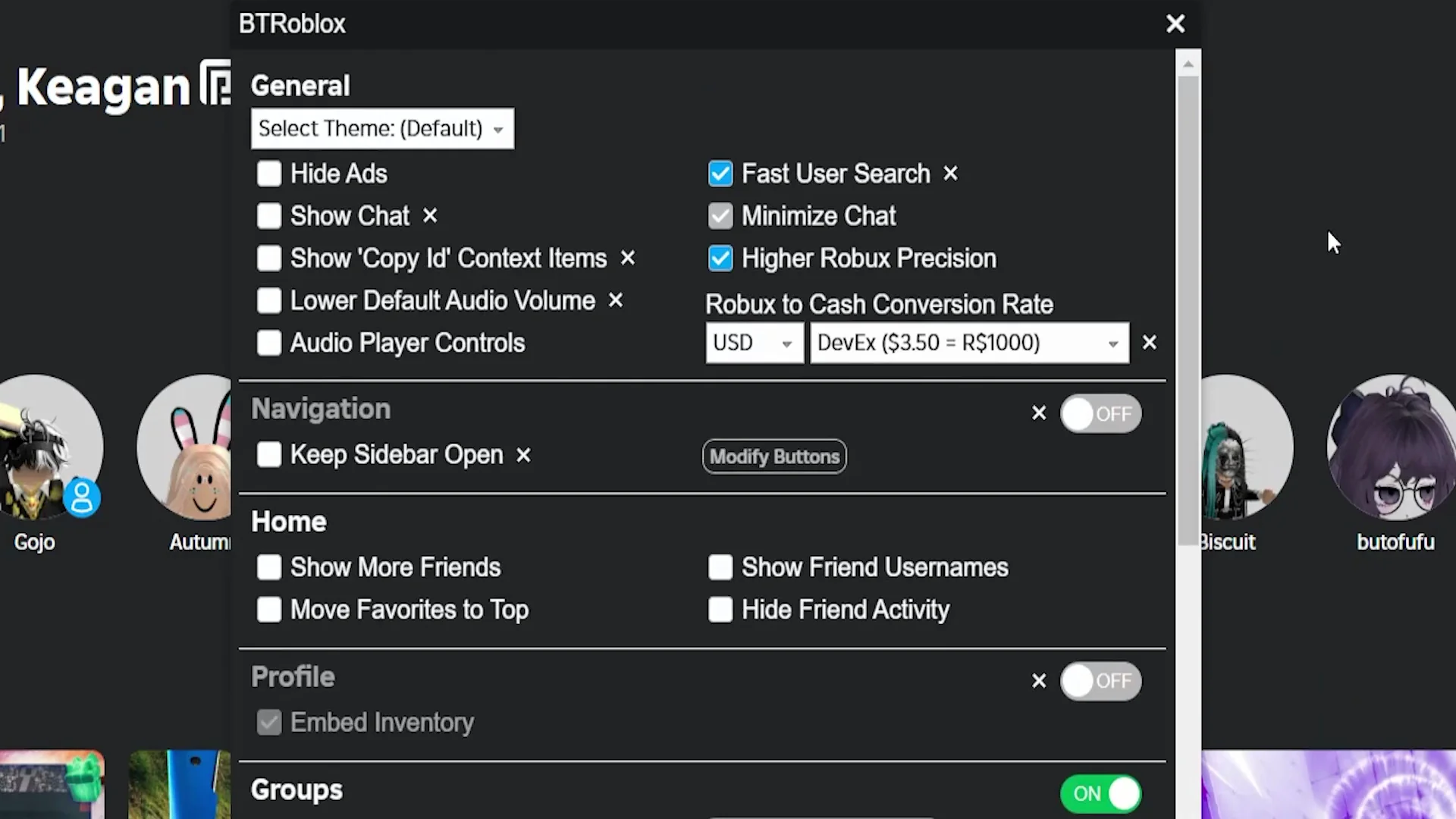
It does not matter if the other options are selected or not. You must just make sure the server list Pages is selected.
Advanced Setting for Region and Ping
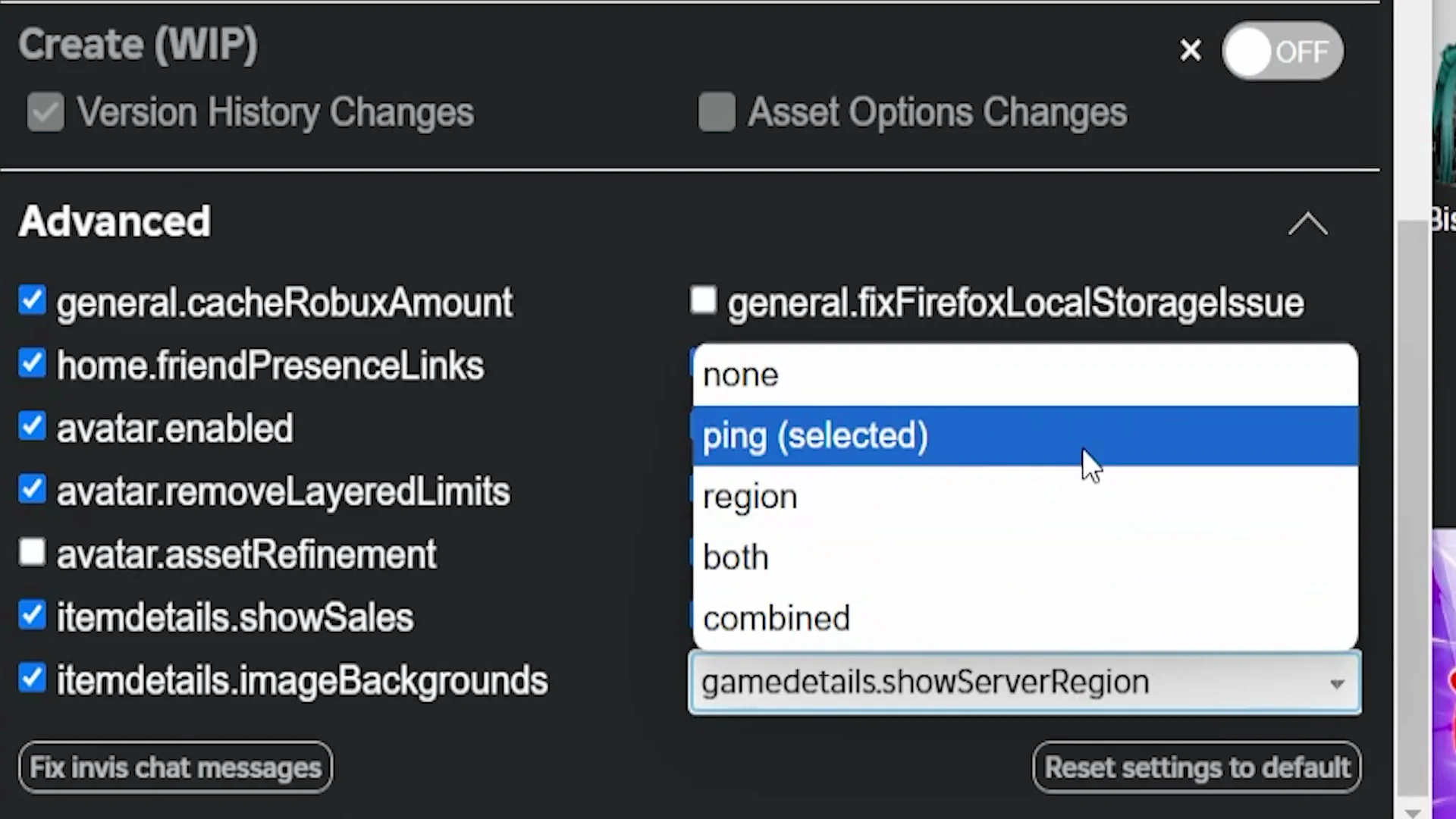
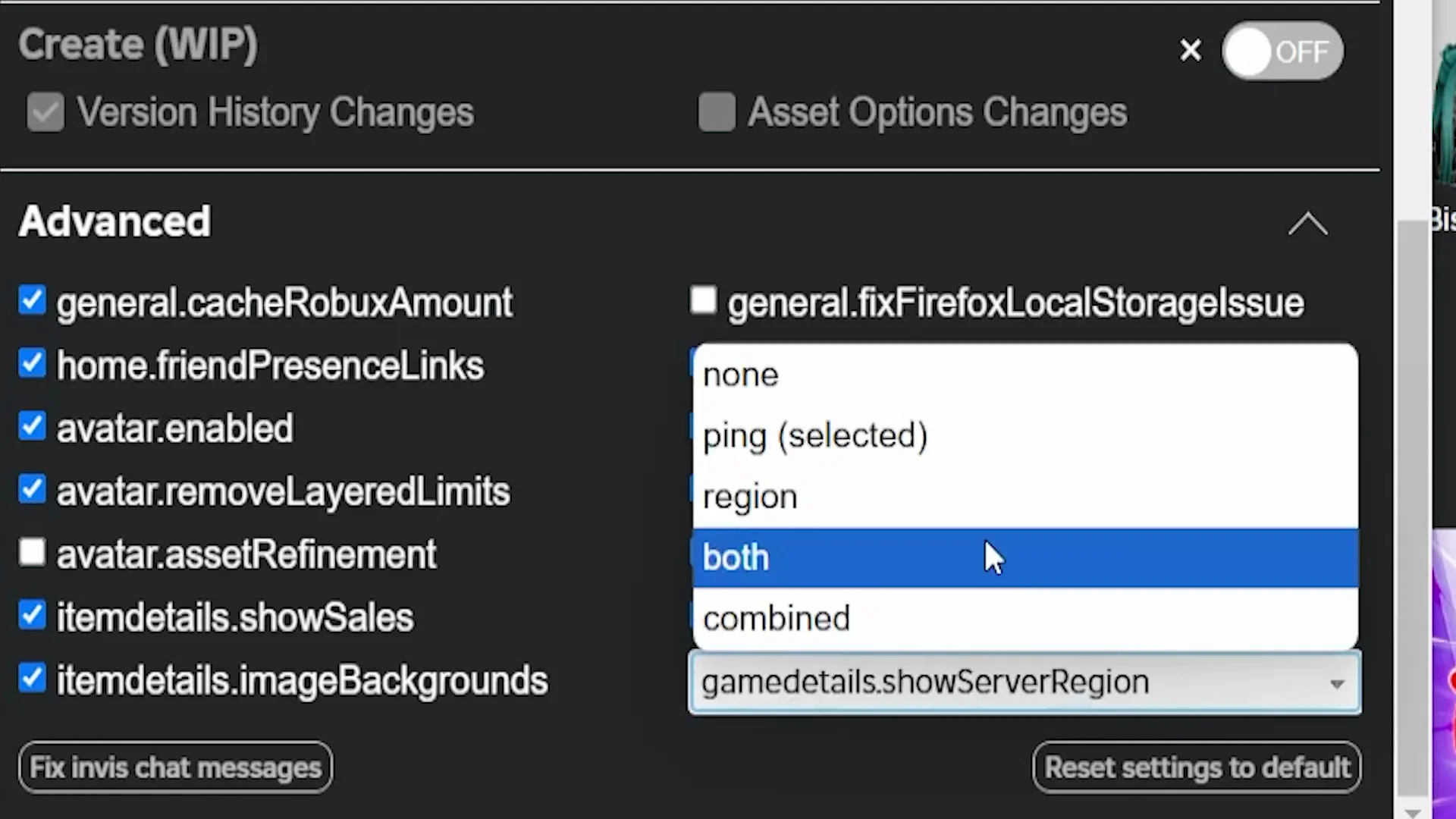
Next, go to the bottom where you will have this Advanced section and click the dropdown arrow next to it. These settings look quite complicated, but this is very simple.
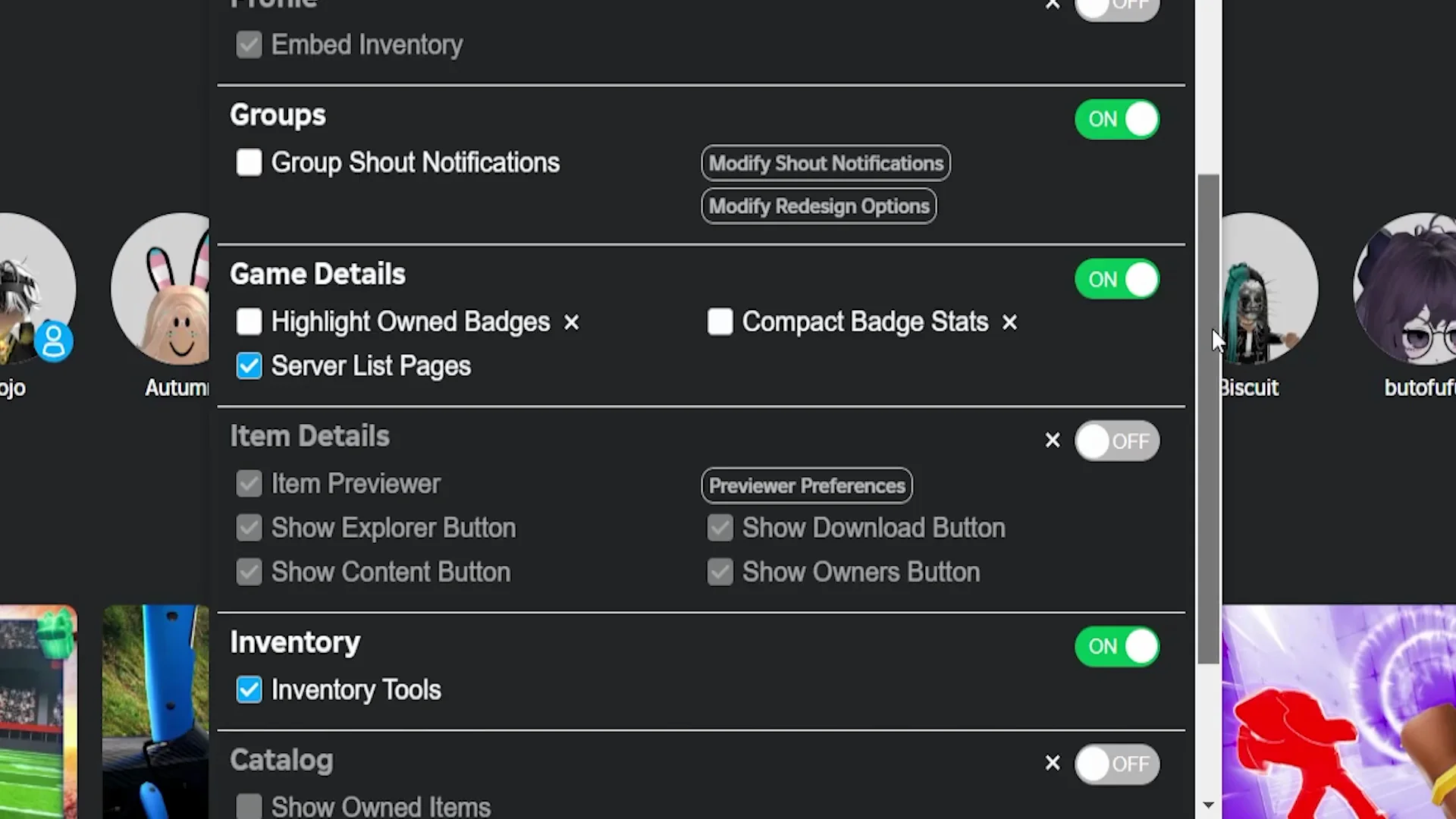
- You will see there’s a white box with a dropdown. By default this is set to Ping.
- I like to set it to Both, as this will show you both where the server location is as well as how much ping you’re expected to get in the server.
View Roblox Server Location and Ping in Games
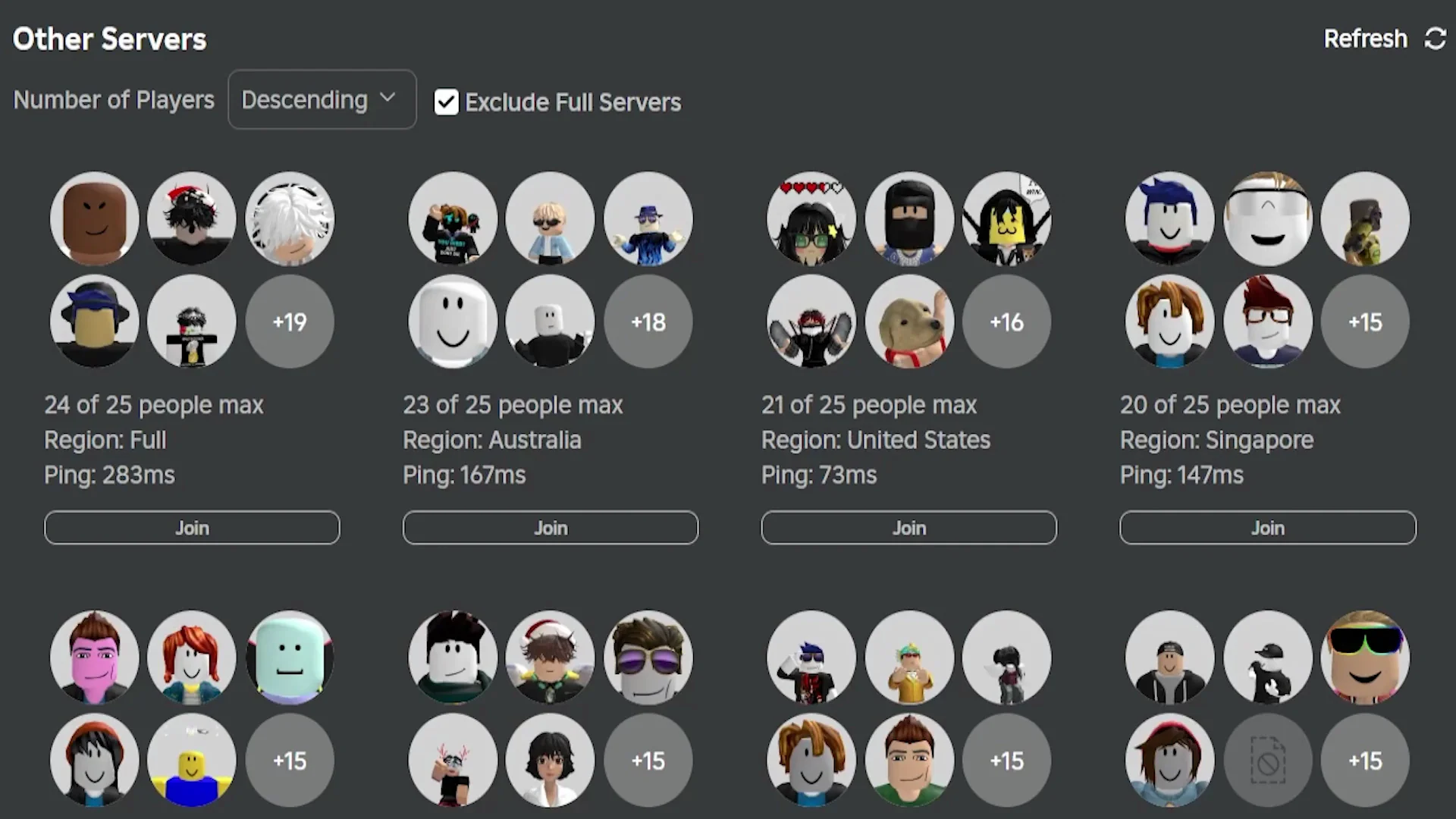
Refresh Roblox one more time and then go into a Roblox game to see if it is working properly. If you followed the steps correctly, you will now be able to see the regions of the Roblox servers as well as the ping.
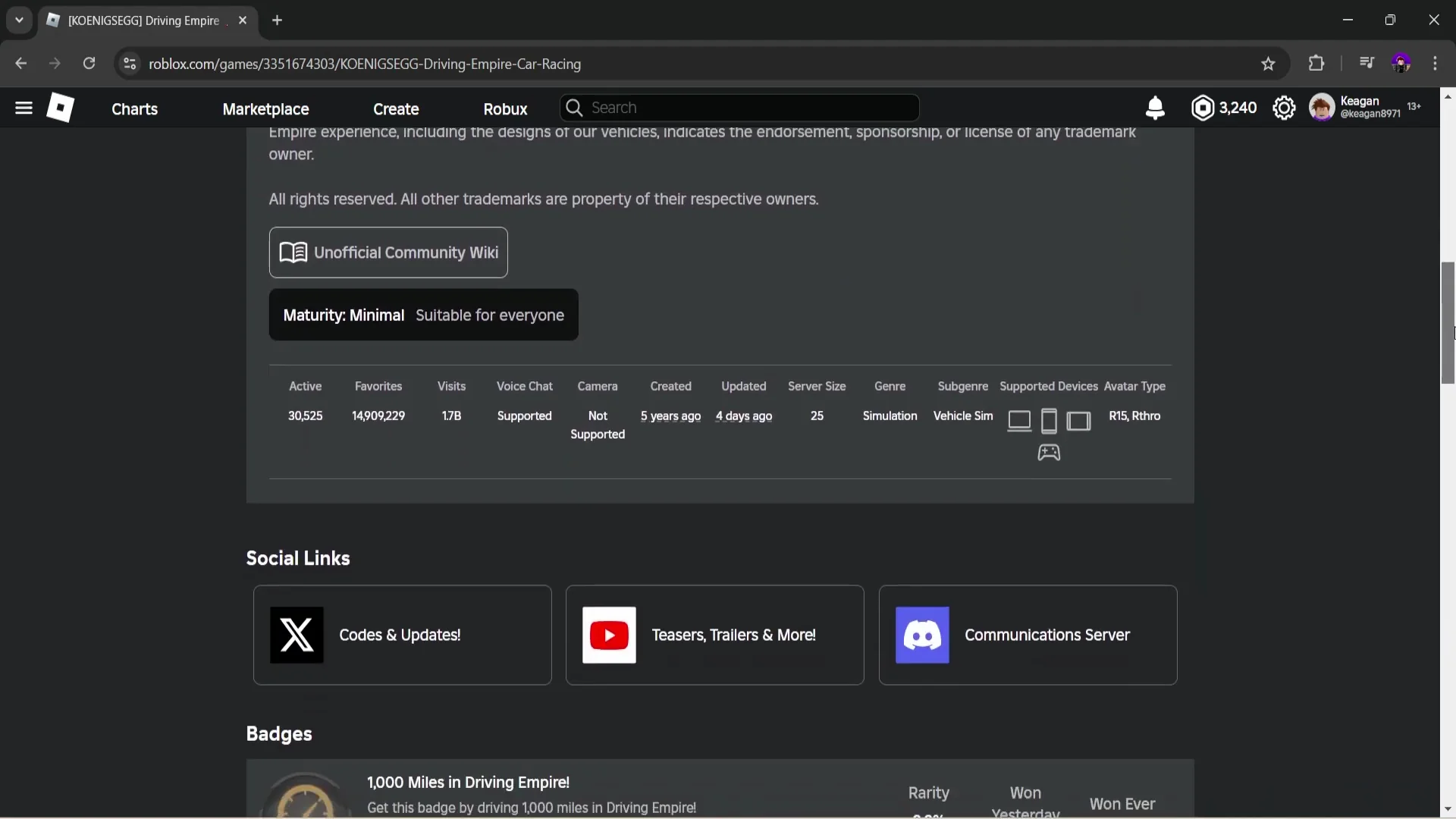
Unfortunately, for some reason it does not display the server region for servers that are full, which is very weird and bizarre. It does still show it on servers you are able to join and that aren’t full.
Final Thoughts
Using BT Roblox with the server list Pages enabled and the Advanced setting set to Both helps me see Roblox server location and expected ping. It hasn’t completely fixed language mismatches, but it has helped me land in more English speaking servers.