If you’re a Roblox player looking to improve your in-game experience, BLOXSTRAP might be just what you need. In this guide, I’ll walk you through how to use BLOXSTRAP to unlock your FPS (frames per second) and adjust lighting for an enhanced gaming experience.
Best of all, it’s free and easy to set up.
What is BLOXSTRAP?
BLOXSTRAP is a handy tool designed for Roblox. Its main features include:
- FPS Unlocker: Removes the 60 FPS cap in Roblox, allowing you to boost your frame rate significantly.
- Lighting Enhancements: Adjusts the game’s lighting to make it more visually appealing.
There are other minor features, but these two are the most significant and useful.
Boost FPS using Bloxstrap: Step By Step
Step 1: Download BLOXSTRAP
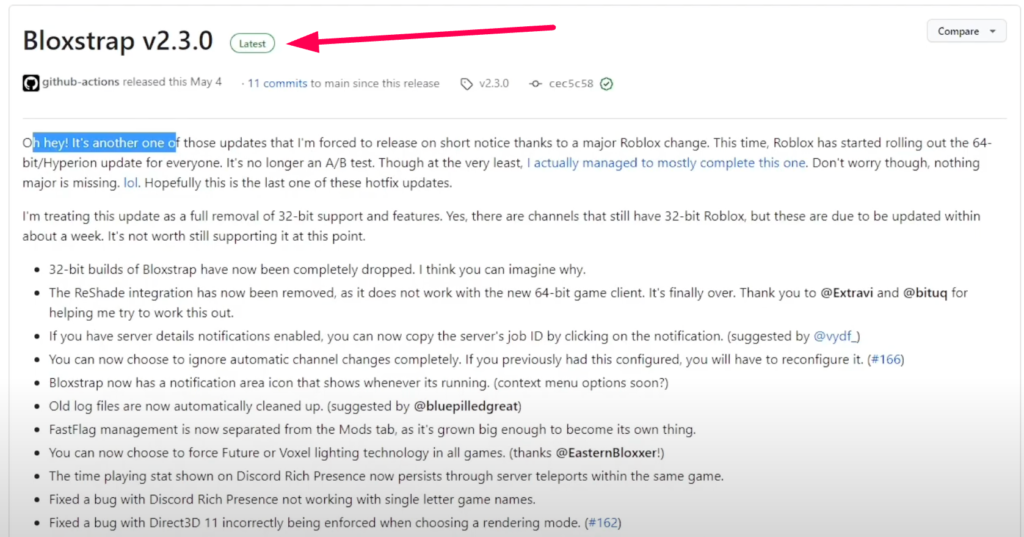
First, you’ll need to download the latest version of BLOXSTRAP.
Find the download link: Make sure to download the latest version—at the time of writing, it’s version 2.30 for 64-bit systems.
- The file should be named something like:
blockstrap_2.30_64bit.exe.

Install the software: After downloading, run the .exe file. Once installed, BLOXSTRAP will look something like this:
- Tip: You can change to dark mode if preferred. It’s easier on the eyes, especially for late-night gaming sessions.
Step 2: Configure the FPS Unlocker
Before jumping into the shaders, let’s first focus on getting that sweet FPS boost.
Frame Rate Limit:
Roblox is normally capped at 60 FPS, but BLOXSTRAP lets you raise that limit to no cap. You can even go as high as 10,000 FPS if your system allows it.

To do this, simply adjust the frame rate slider or input your desired FPS.
While this option exists, it doesn’t significantly affect performance or visual quality, so feel free to leave it at the default setting.
Step 3: Install BLOXSTRAP and Launch Roblox
Once you’ve configured the FPS unlocker, you’re ready to install BLOXSTRAP and start playing Roblox.
- Click ‘Install’: After adjusting the frame rate, click on the Install button. Follow the prompts, and once the installation is complete, Roblox will automatically open.
- Test Your FPS: To check if the FPS unlocker is working, launch any Roblox game. For this example, I’ll use a simple Baseplate map.
While in the game, press Shift + F5. This will bring up the FPS counter, showing your current frame rate.

You should now see your FPS jump from the default 60 to around 300 FPS (depending on your PC specs).
Step 4: Adjust the Lighting Technology (Optional)
BLOXSTRAP also allows you to tweak the lighting settings, giving your game a more polished look. However, this feature may cause some lag, so use it with caution, especially on lower-end PCs.
- Open the BLOXSTRAP Menu:
After launching Roblox, search for the BLOXSTRAP menu by typing “blockstrap” into your computer’s search bar and opening it.
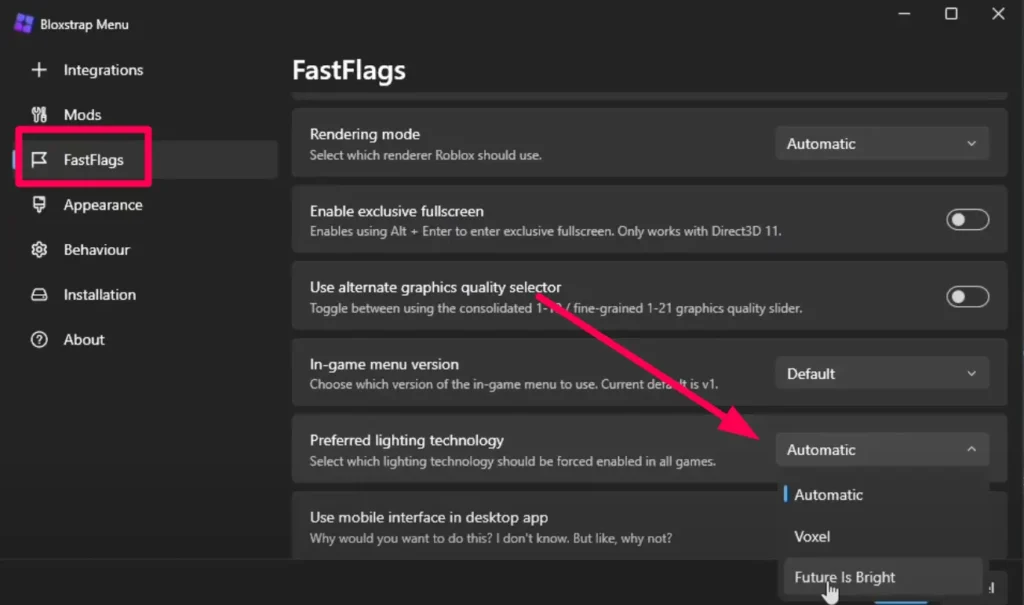
- Go to Fast Flags:
Once in the menu, navigate to the Fast Flags section.
- Select Preferred Lighting Technology:
Under this section, you’ll see an option called Preferred Lighting Technology. From here, you can select different lighting options. I recommend choosing Future Is Bright for the best visual results.
This setting is particularly great for car games, where lighting and reflections make a huge difference in the overall experience.
- Save Your Settings:
After adjusting the lighting settings, click Save to apply the changes.
Step 5: Play Roblox with Your New Settings
Once everything is set up:
Click Play:
Go back to Roblox and click Play to relaunch the game with your new settings.
Enjoy the Boost:
If everything was configured correctly, you should now experience a significant FPS boost and, if enabled, enhanced lighting effects. Your game will not only run smoother but look better too!
Final Thoughts
BLOXSTRAP is a fantastic tool for Roblox players who want to enhance their gaming experience without spending any money. With the FPS unlocker, you can take full advantage of your computer’s capabilities and enjoy Roblox at a higher frame rate.
The lighting adjustments are a nice bonus, though I’d recommend keeping them off if you’re more concerned about performance than visuals.
Troubleshooting Tips
Lag After Enabling Lighting Technology: If your game starts to lag after changing the lighting settings, it’s best to revert back to default or lower settings.
FPS Unlocker Not Working: Make sure you have followed the steps exactly and that BLOXSTRAP is installed correctly. If Roblox doesn’t launch or if your FPS stays capped at 60, try reinstalling the software.
I hope this guide helped you get the most out of BLOXSTRAP. If you have any questions or run into any issues, feel free to leave a comment or check the BLOXSTRAP community for support.