Bloxstrap Uninstallation Guide
I’m showing you how to open Bloxstrap, change fonts, uninstall Bloxstrap, and fix problems with Roblox and Bloxstrap.
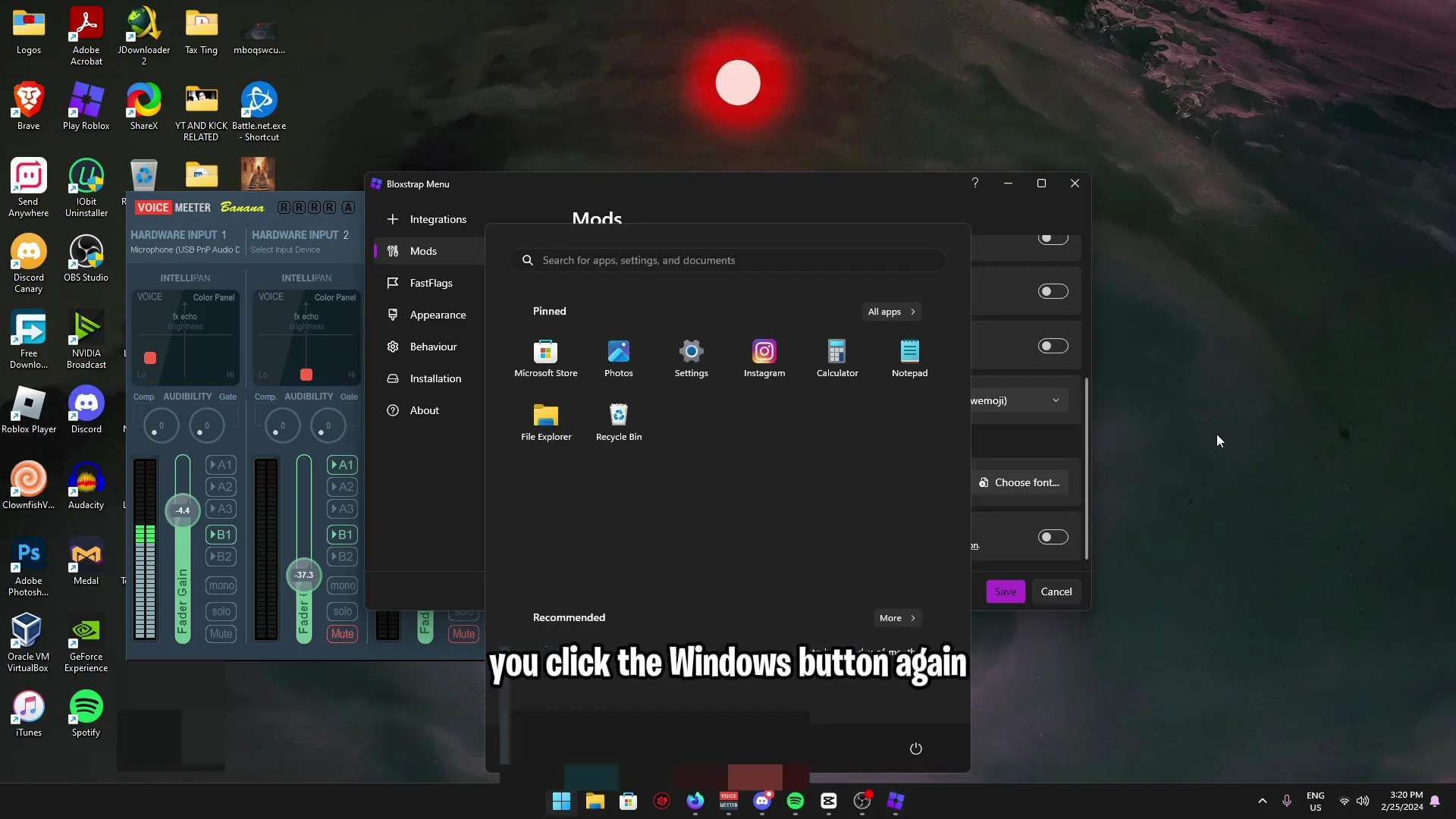
Open the Bloxstrap menu
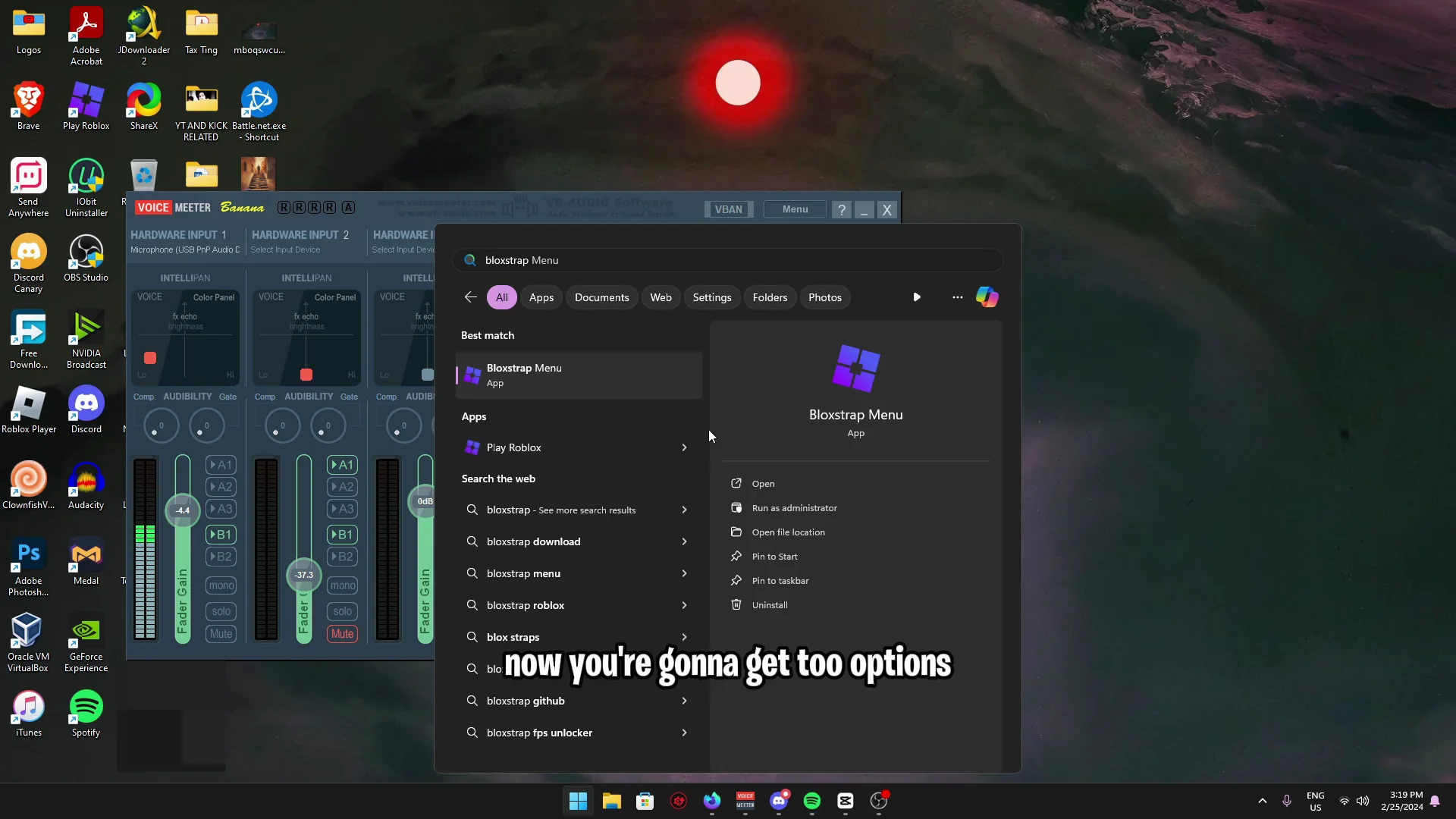
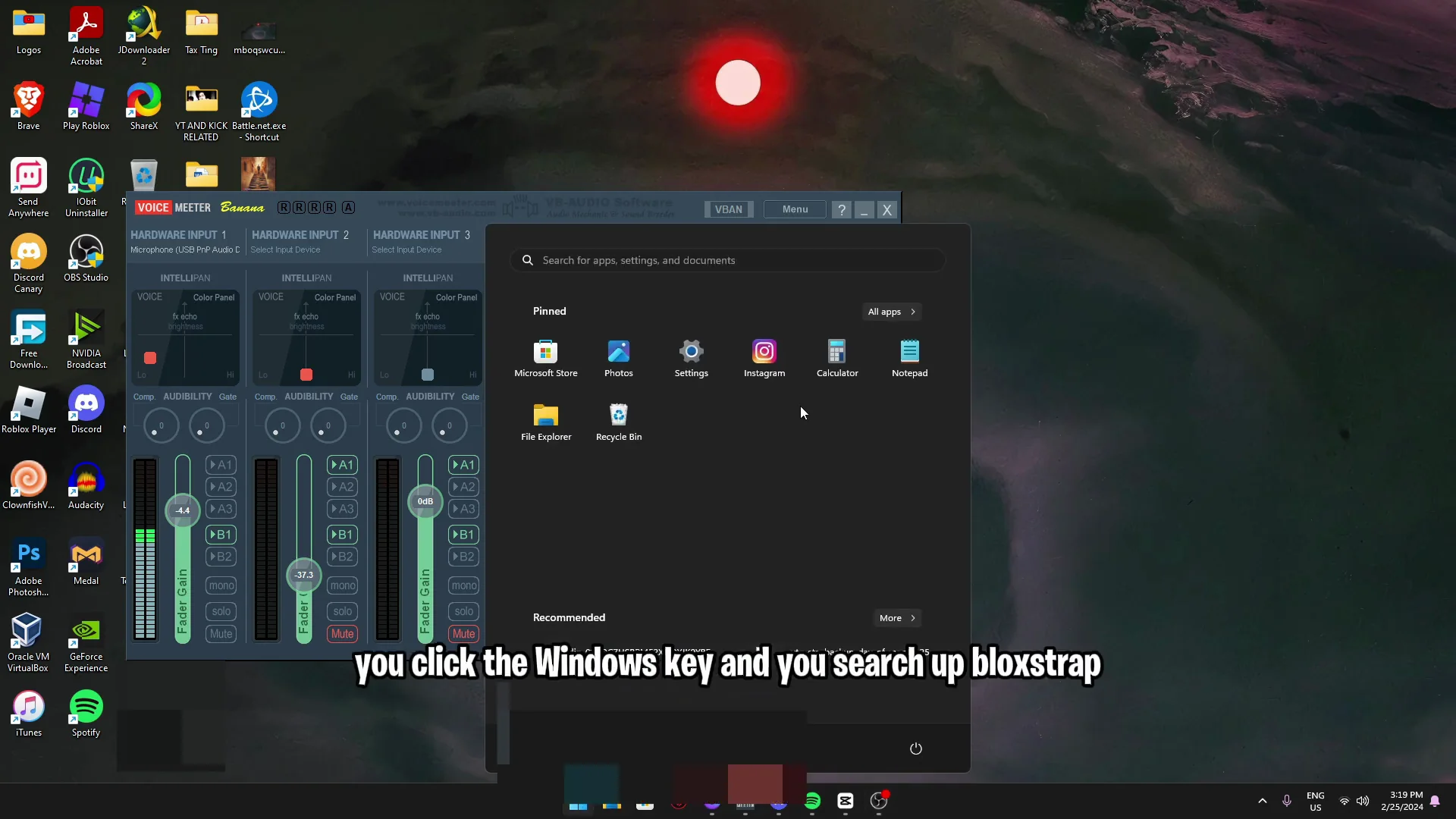
- Press the Windows key and search Bloxstrap.
- You’ll see two options: Bloxstrap menu or Play Roblox. Do not click Play Roblox. Click Bloxstrap menu.
Change fonts in Bloxstrap
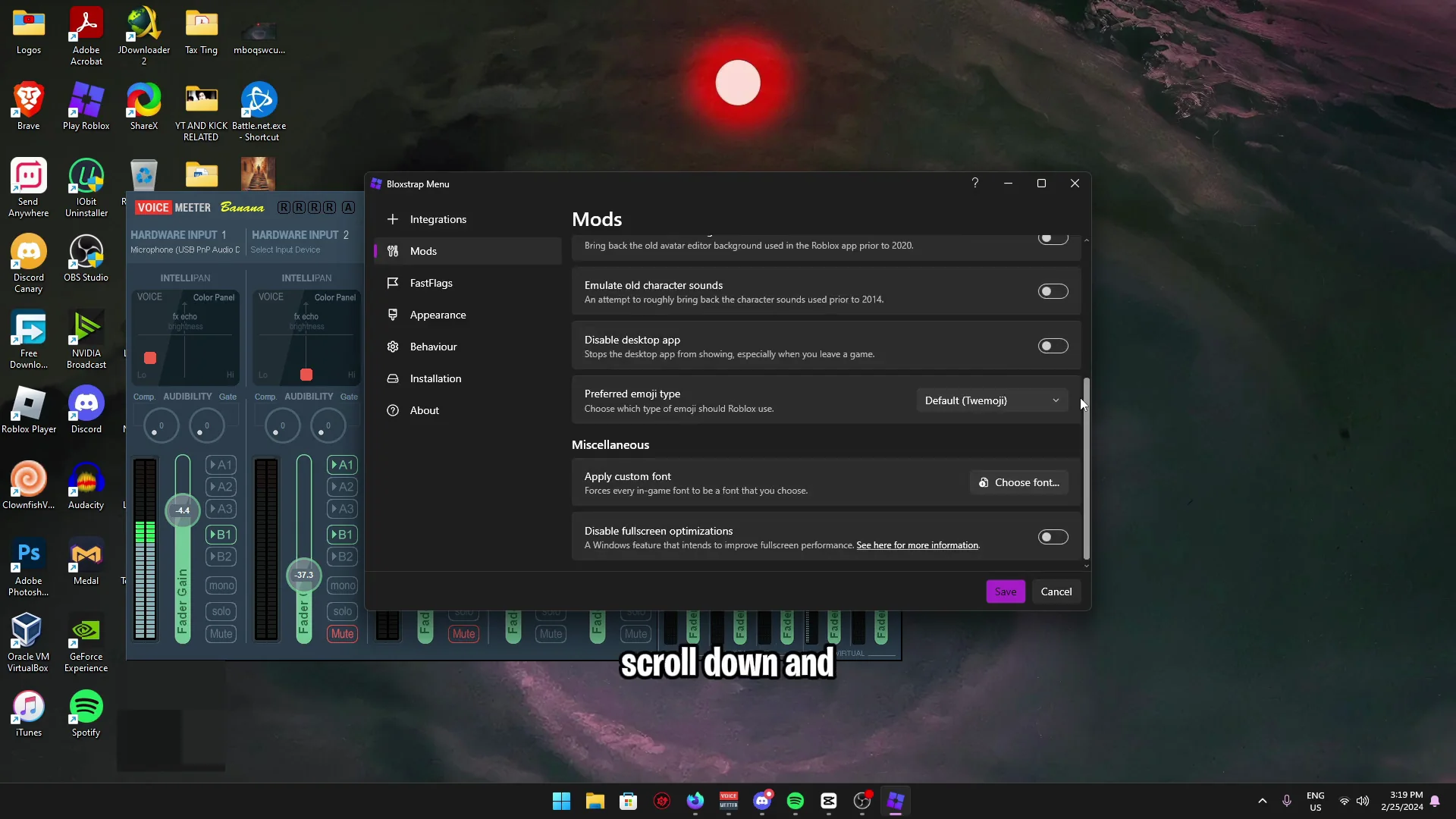
- In Bloxstrap, click Mods.
- Scroll down and change your fonts.
Uninstall Bloxstrap
- Press the Windows button.
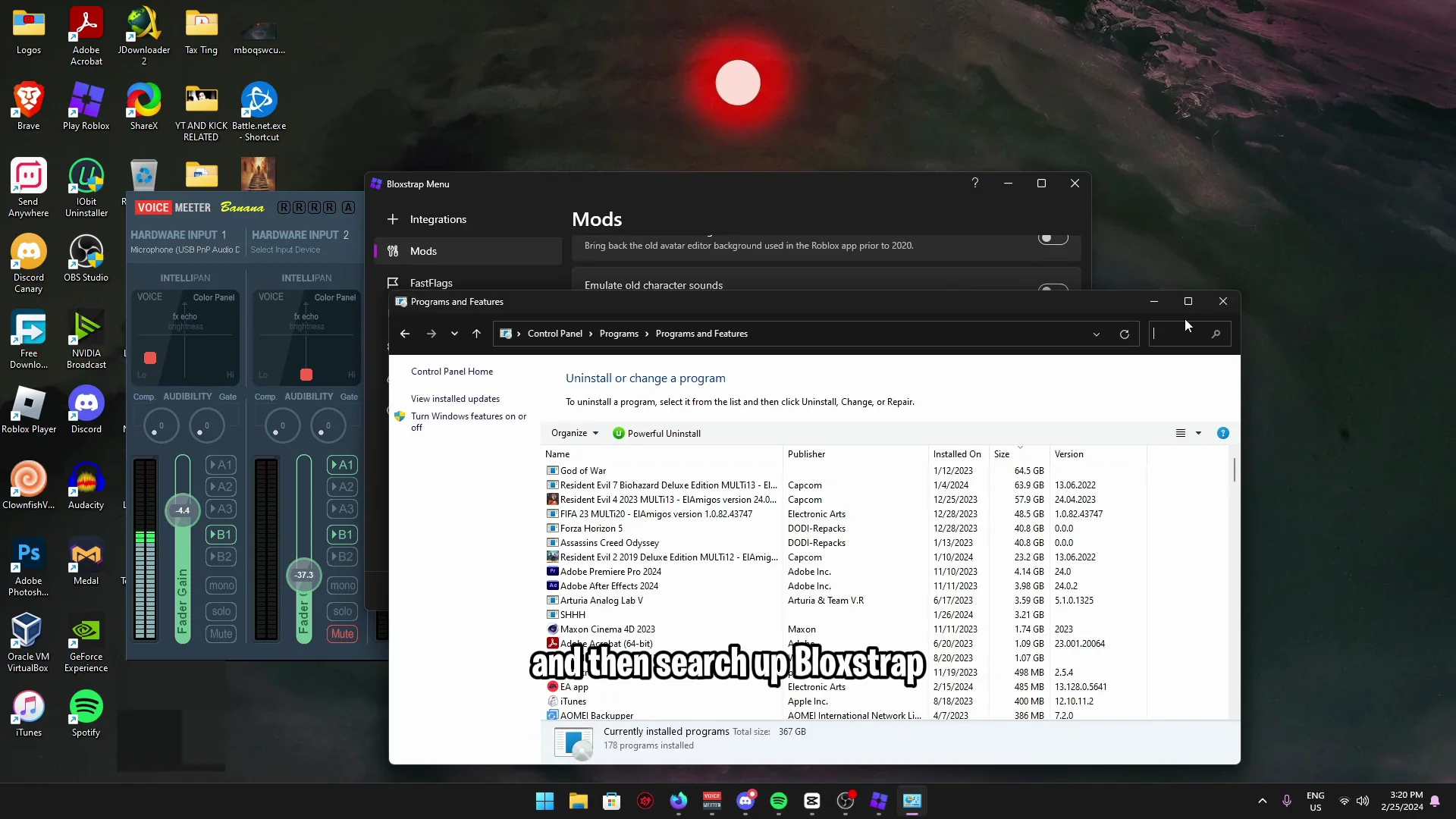
- Open Control Panel.
- Click Uninstall a program.
- Search Bloxstrap and uninstall it.
If Roblox still has problems
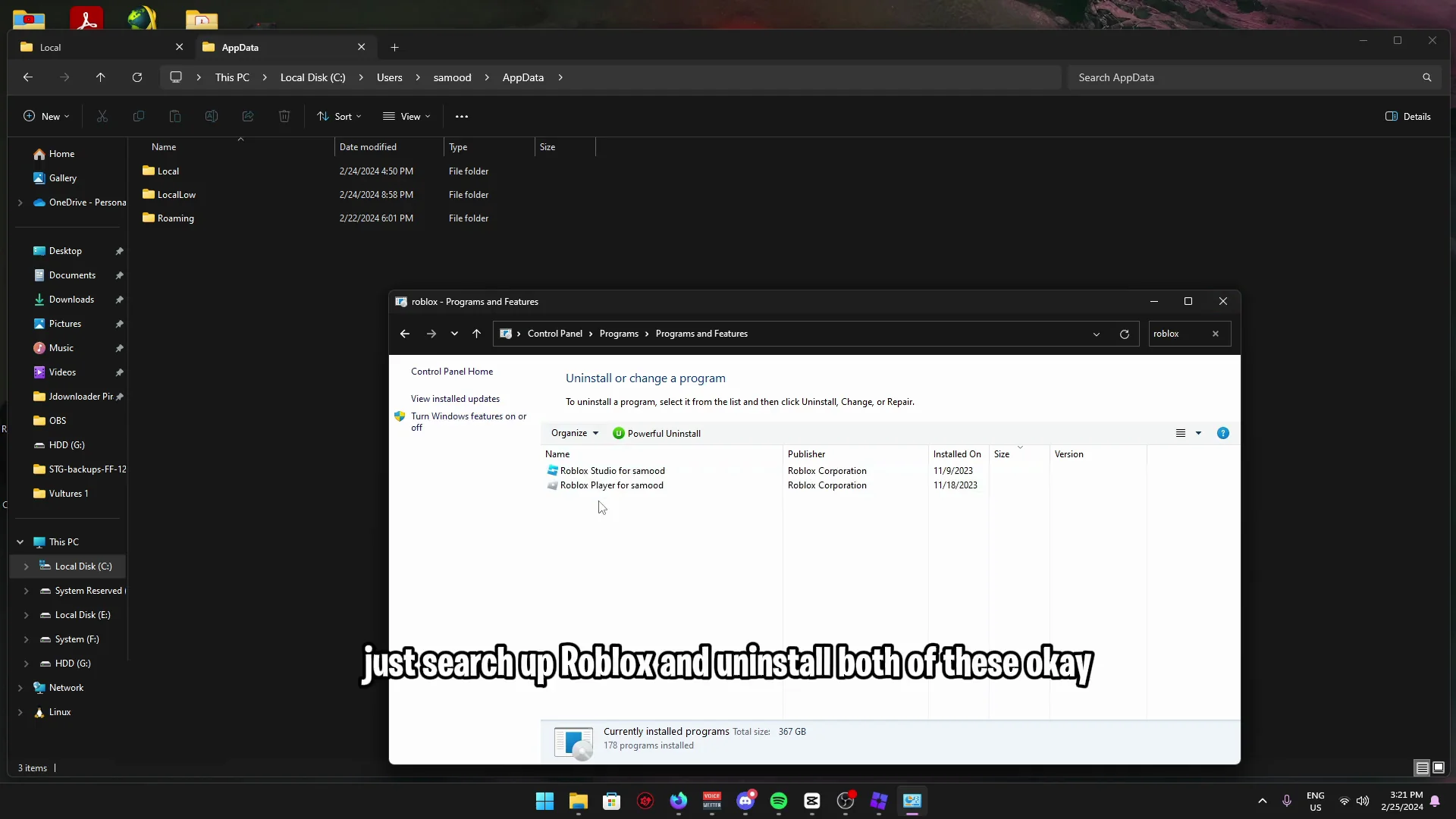
Uninstall Roblox from Control Panel:
- In Control Panel, search Roblox.
- Uninstall both Roblox entries.
Clean leftover Roblox files in AppData
- Open File Explorer.
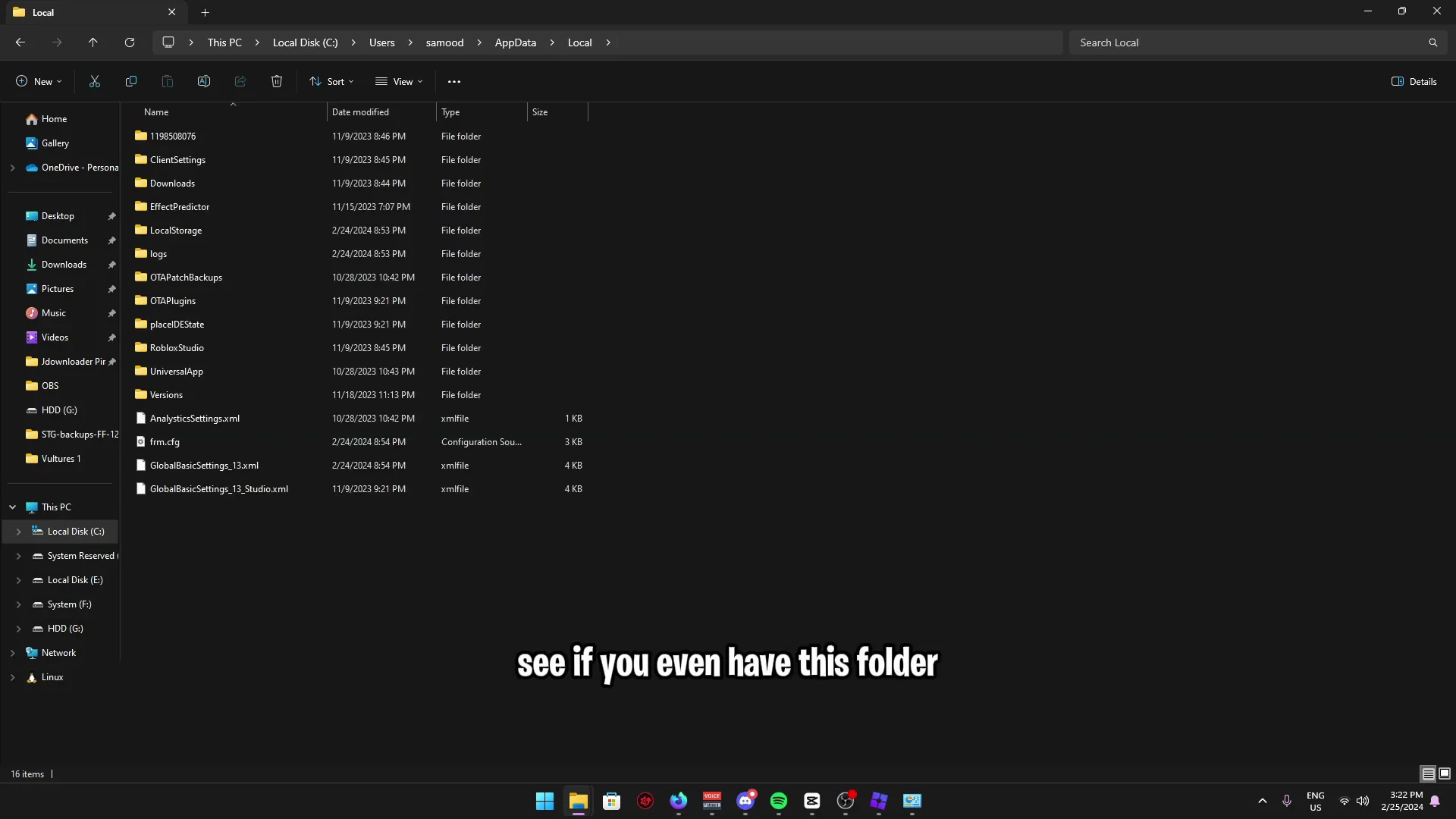
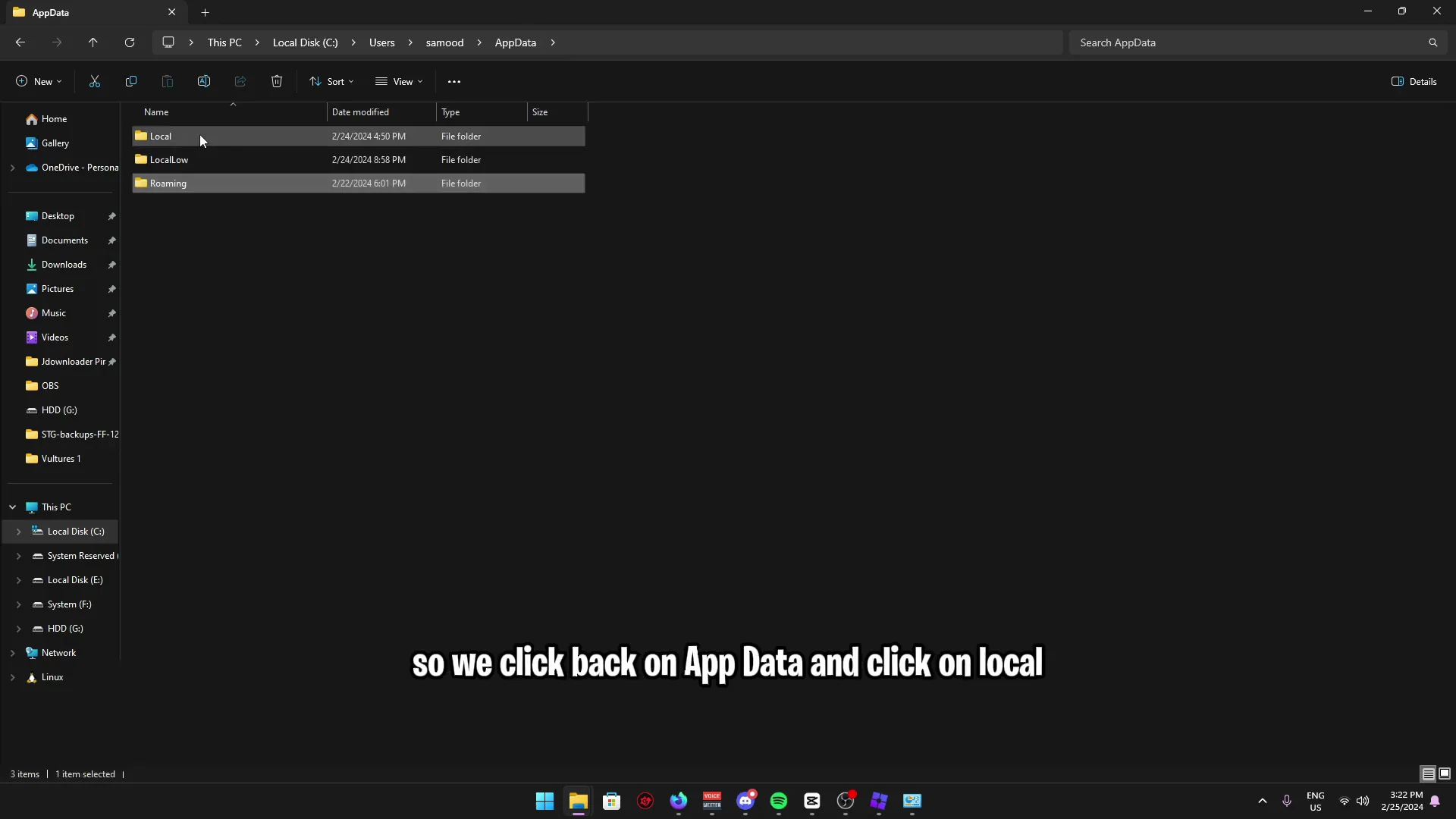
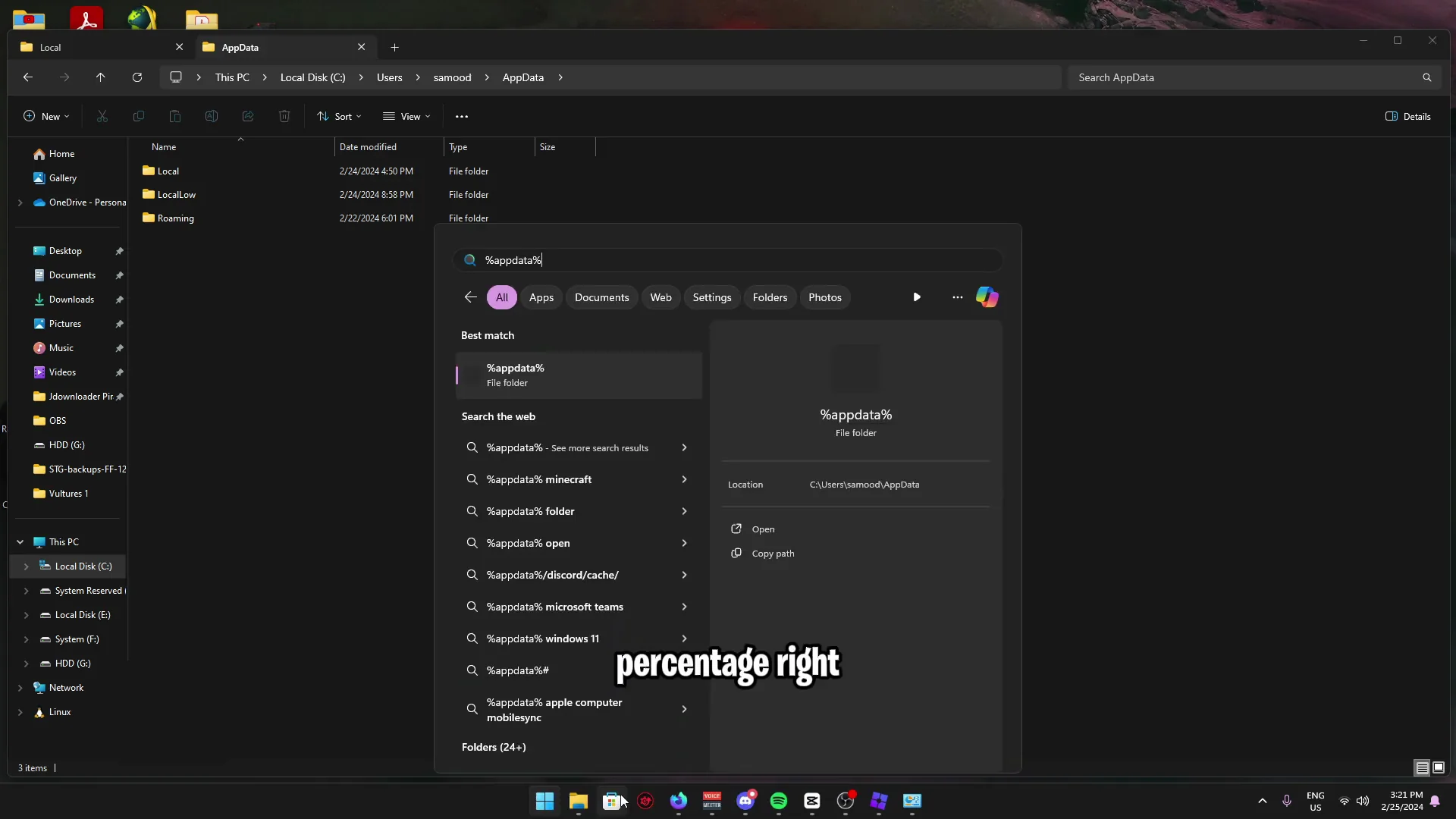
- In the address bar, type %appdata% and press Enter. This opens the Roaming folder.
- Click AppData, then click Local.
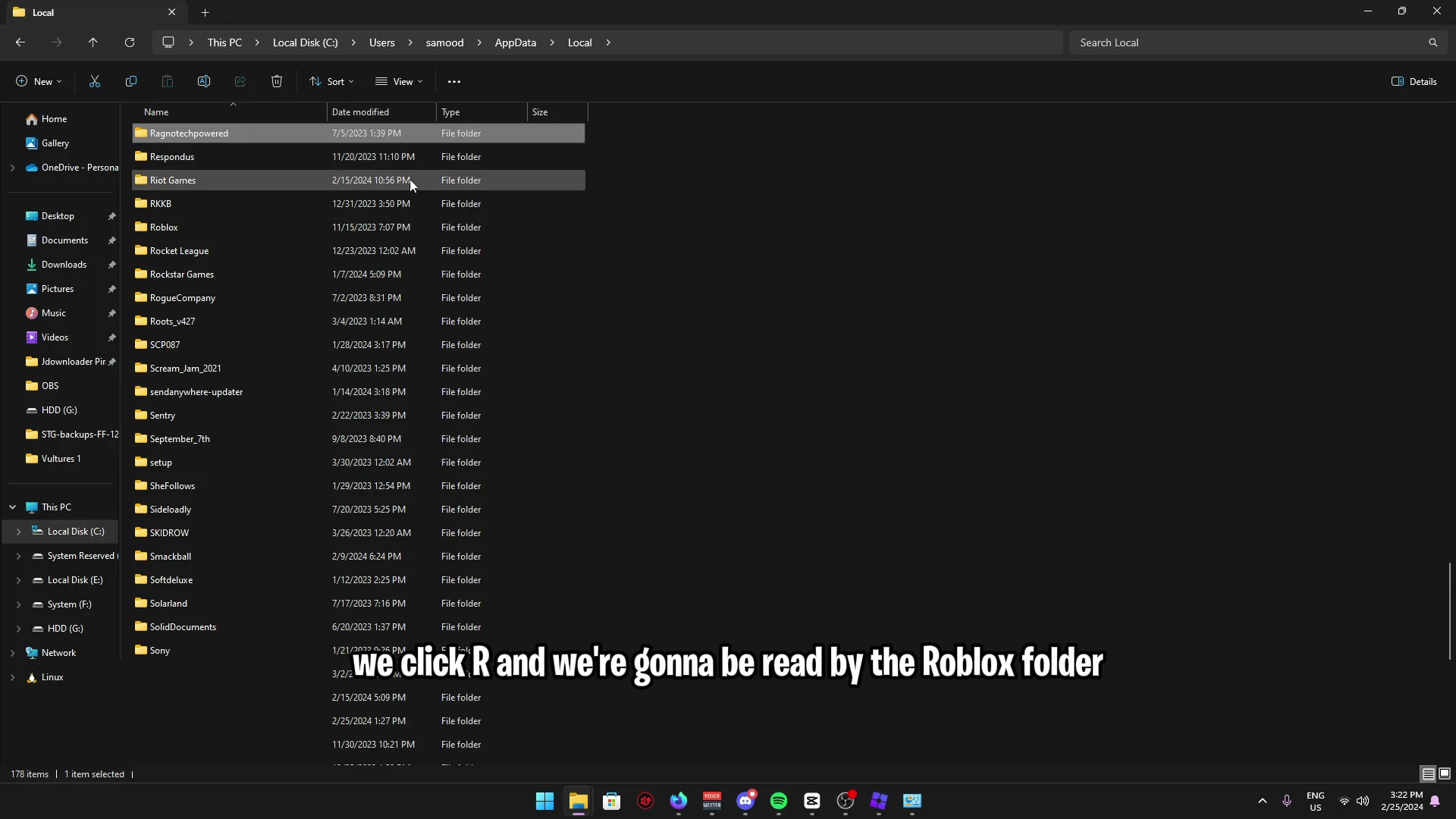
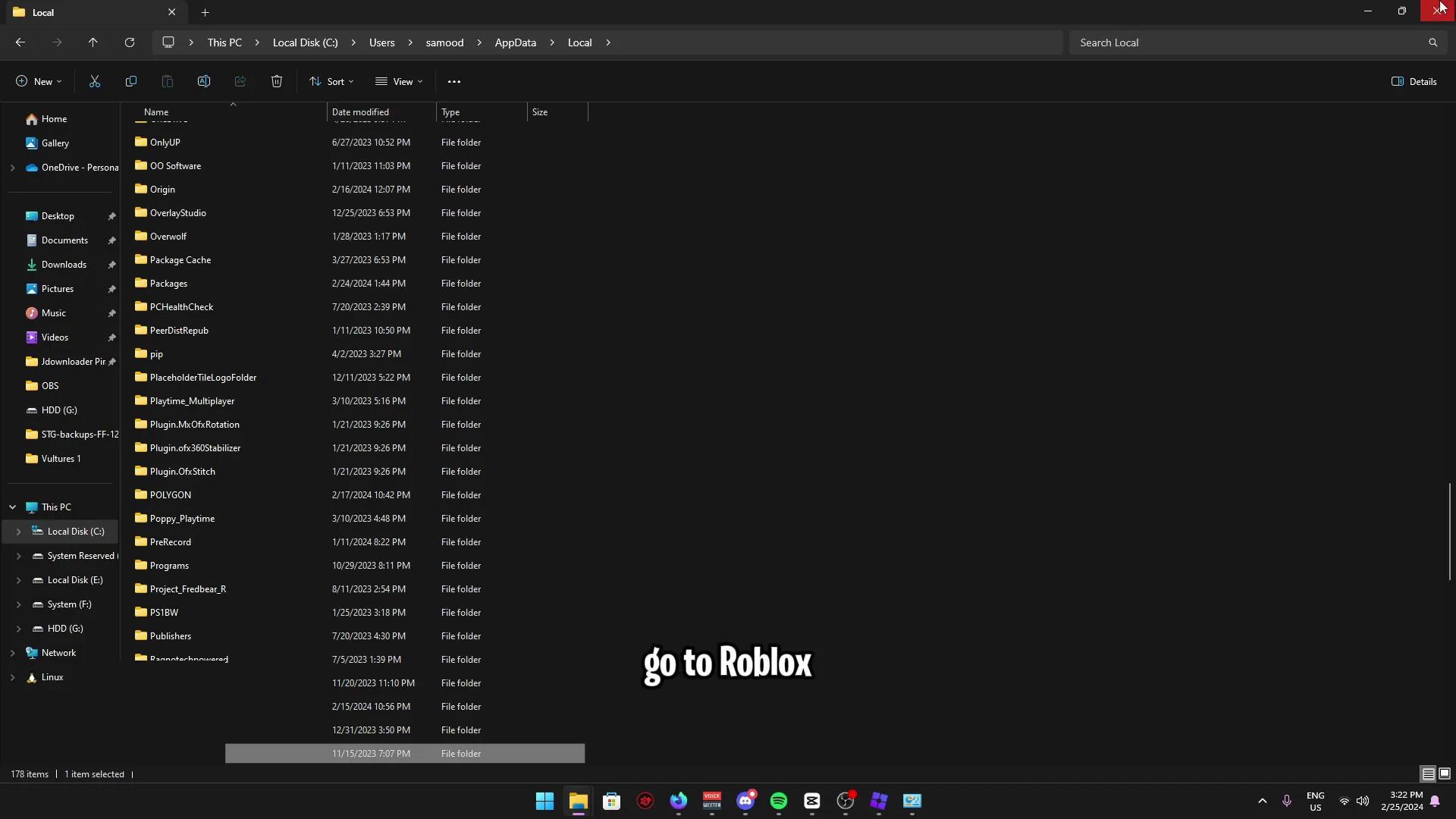
- Press R to jump near the Roblox folder.
- If the Roblox folder still exists after uninstall, and there are still files in it, remove it.
Reinstall Roblox and test
- Go to roblox.com, reinstall Roblox, and try running a game.
Final Thoughts
Use the Bloxstrap menu to adjust fonts, uninstall Bloxstrap from Control Panel if needed, and remove Roblox completely if issues continue. Clear any leftover Roblox files in AppData before reinstalling from roblox.com, then run a game to confirm it works.